Installing and Setting Up the Pcounter Client on Mac
1. Click here to download the Pcounter client.
...
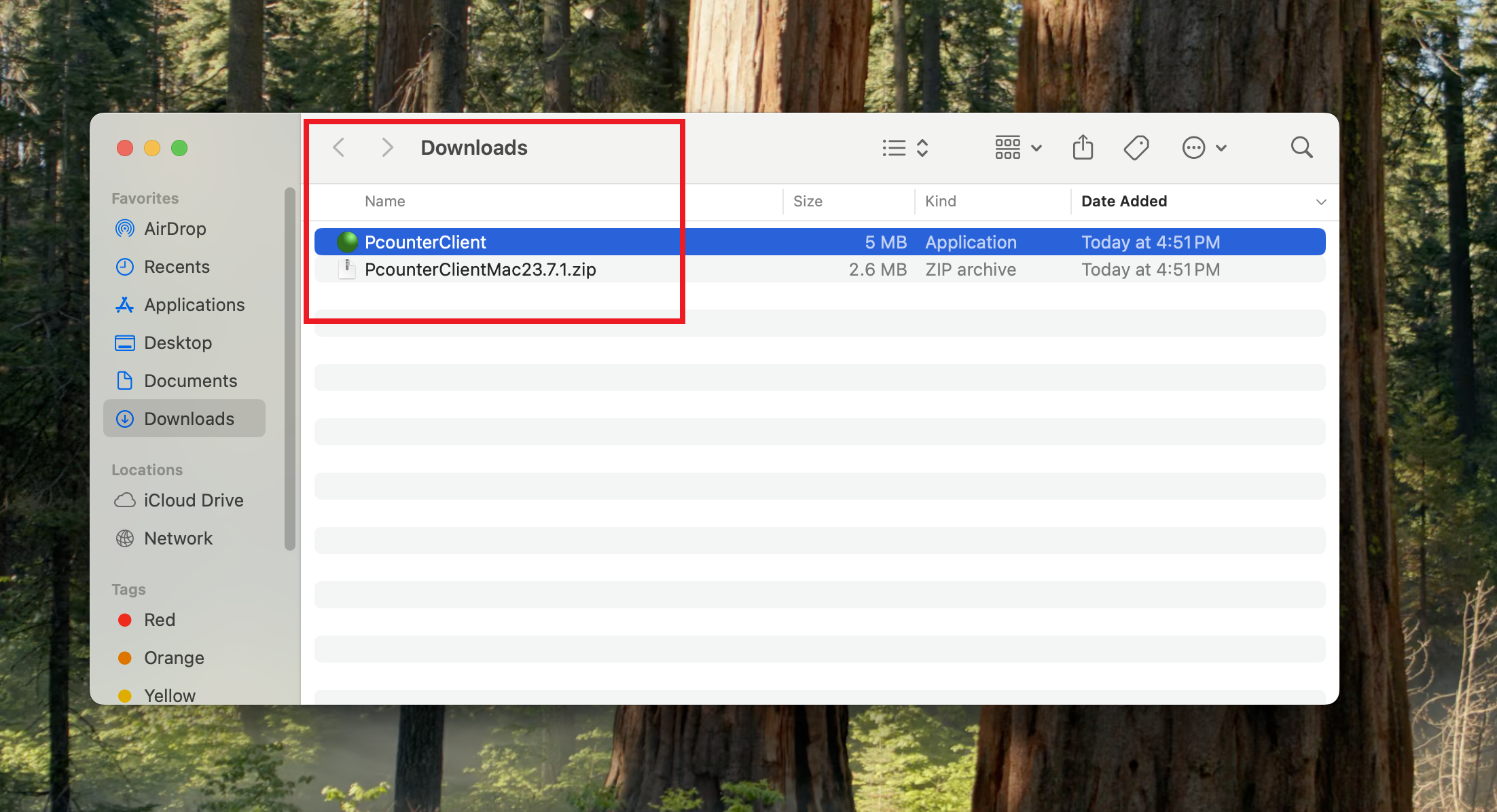
6. You will see the Pcounter client in the Download folder on your Mac.
Setting Pcounter to Launch at Login
1. Open System Settings on your Mac.
...
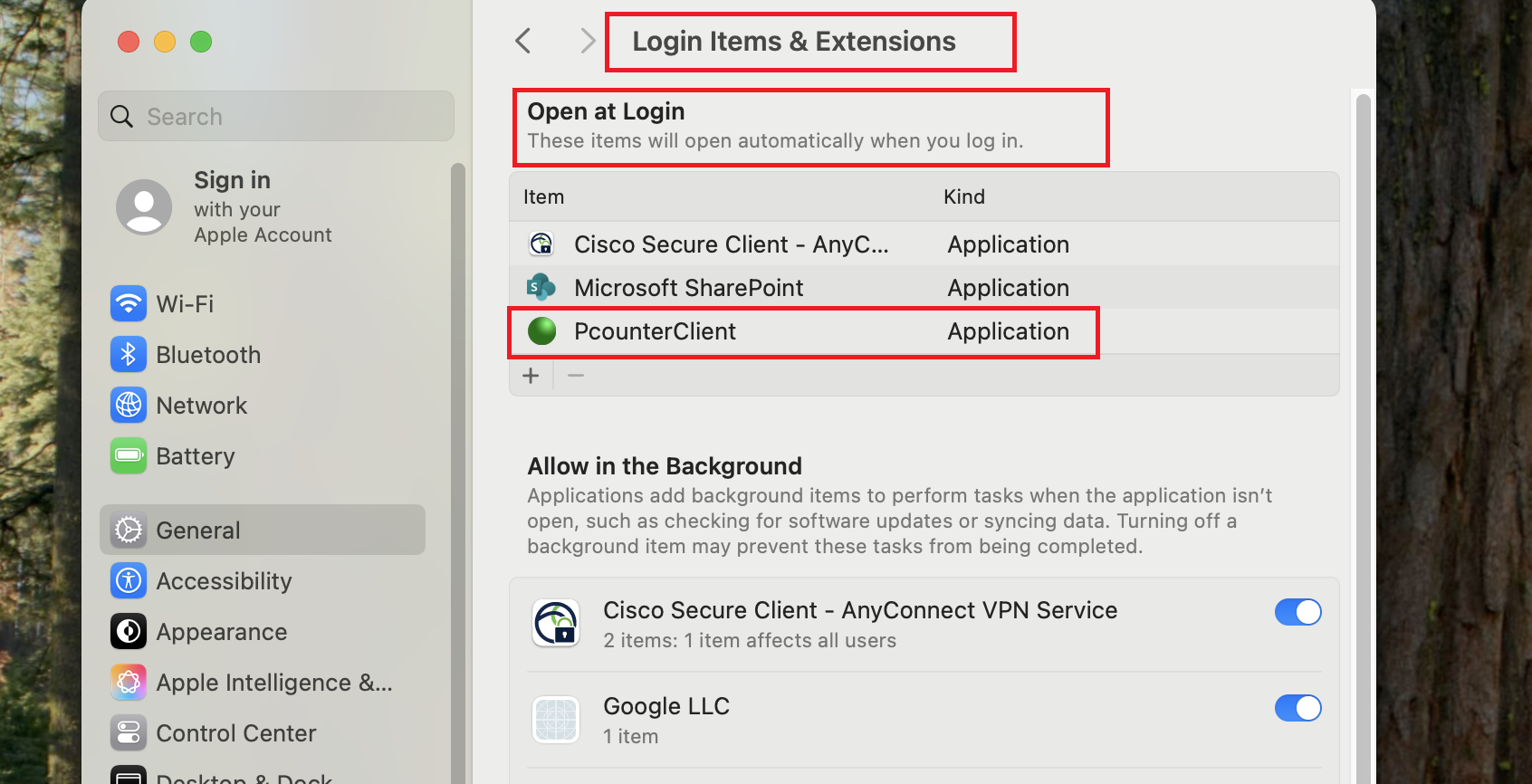
5. You’ll now see the Pcounter Client listed in Login Items. It will automatically launch when you log in.
Follow the steps below to add printers manually.
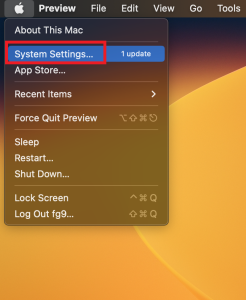
- Go to "System Settings" on your Mac.
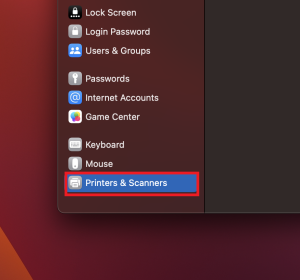
2. Go down to the "Printer and Scanners" section and select it.
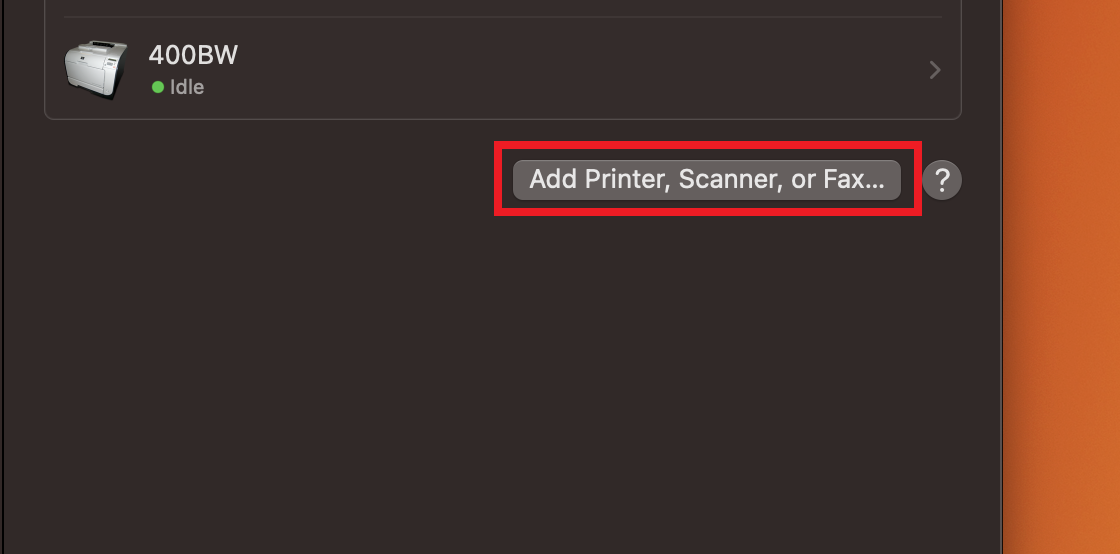
3. Click on the "Add Printer, Scanner, or Fax...".
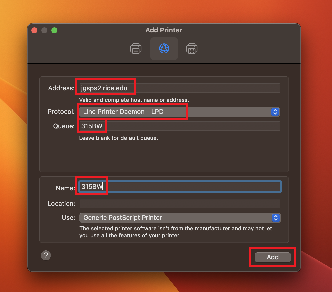
4. Go to the IP section on top and enter "jgsps2.rice.edu" on the Address line. Select the Line Printer Daemon - LPD Protocol and enter the printer Queue Name as show below. Click on the image below to expand. Click on Add.
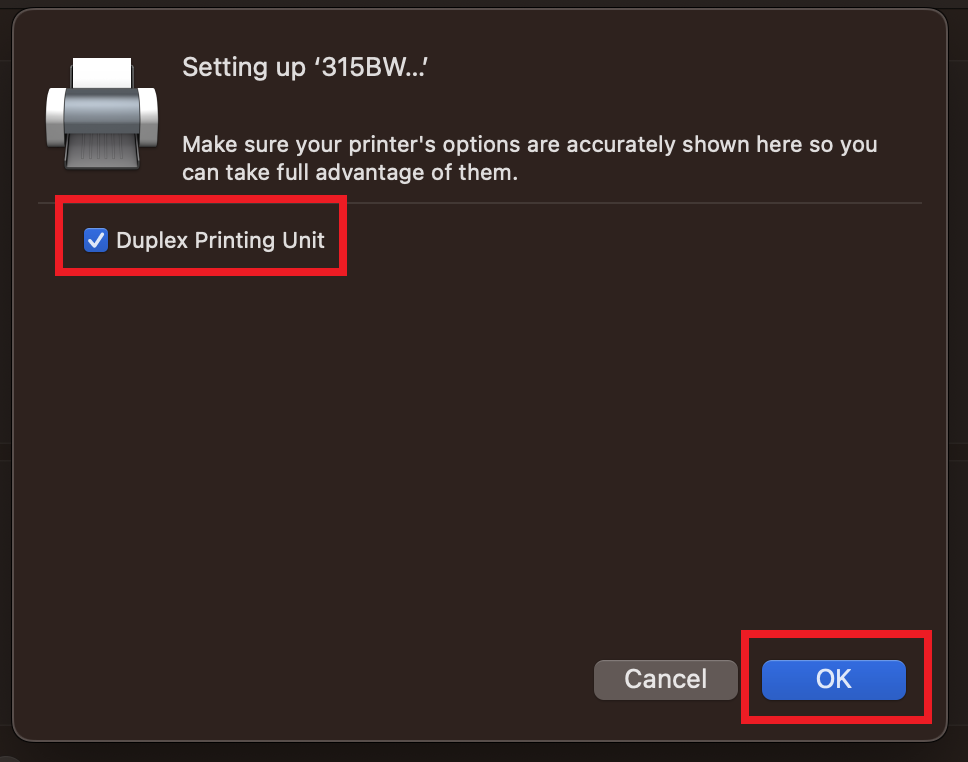
5. Make sure you enable the Duplex Priting Unit option and click Ok.
6. Once you finish, you will see printer 315BW has been added.
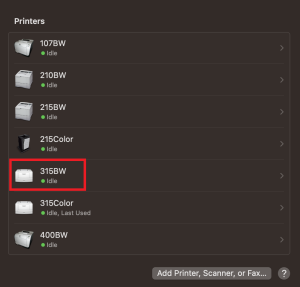
7. Continue with installing all of the rest of the student printers listed below.
107BW, 210BW, 215BW, 215Color, 315BW, 315Color, and 400BW