Introduction
Electronic books that are purchased via GOBI are ordered by C&MS staff and made available by GOBI within a few days (the length of time it takes for an ebook to be ready for use depends on the publisher). Once an ebook is available, catalogers need to process it further in order for patrons to access the ebook. Cataloging an ebook entails:
- Verifying that the publisher has given us full-text access
- Updating the bibliographic record in Alma
- Updating the bibliographic reference for the PO line
- Editing the portfolio
- Activating the portfolio
- Marking the title as Done in the Electronic Resource Activation Task List
When should you follow these procedures?
These instructions apply to ebooks ordered from GOBI. Ebooks acquired via other methods have different processing instructions.
How do I know when an ebook is ready to be cataloged?
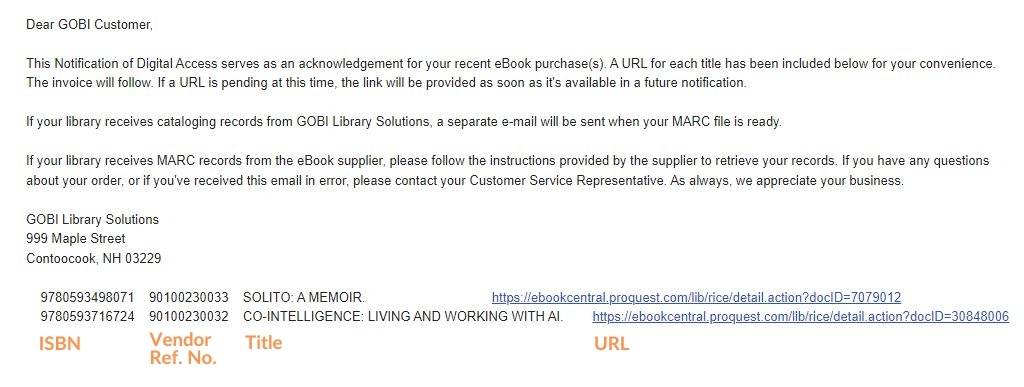
When an ebook is ready for use, GOBI sends an email with a subject line that starts with "GOBI NOA:" followed by the name of the publisher (NOA stands for "notice of access"). The email is sent to the Electronic Resources team's distribution list (eresources@rice.edu) and to individual catalogers who work on ebooks. Contact GOBI to add or remove notification recipients.
Below the introductory text of the email is information about the ebook(s):
Cataloging procedures
Step 1: Verify that the publisher has given us full-text access
Before spending time cataloging an ebook, check that the publisher has turned on full-text access.
- In Alma, go to the Electronic Resource Activation List by clicking on the clipboard icon
 at the top of your Alma screen and selecting Electronic Resources > Activation - unassigned.
 - Locate the title on the list, then click the ... button and select Test Access. This will load an Online Services page.
- Click the link that appears after "Full text available at:"
- Verify that you have full-text access to the entire ebook (and not just previews of the chapters or access to only certain chapters).
- If you have full-text access, proceed to the next step. If not, notify eresources@rice.edu for troubleshooting.
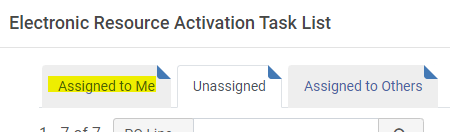
Please note that once you interact with a title on the Electronic Resource Activation List, it will move from the Unassigned tab to the Assigned to Me tab:
Step 2: Updating the bibliographic record in Alma
Updating the bibliographic record for a GOBI ebook is similar to cataloging a print book except in a few key ways:
- In most cases, you will be editing the Community Zone (CZ) copy of the bib record rather than the local copy of the record. CZ records have the people symbol
 in front of the title. The Community Zone is Alma's proprietary shared catalog, analogous to OCLC WorldCat. However, unlike WorldCat, edits to CZ records are automatically reflected in the catalogs of every library using that record.
 - There are restrictions on how CZ records can be edited. Search Resources is disabled in the Metadata Editor (MDE) so you cannot merge or overlay OCLC records. Any existing MARC 020s and 776s cannot be deleted but they can be edited. You can see more details about editing CZ records at Contributing to the Community Zone - Bibliographic Records.
- Due to the shared nature of CZ records, you should follow the guidelines for Provider-Neutral (PN) Cataloging of online resources. OCLC has a very concise, easy to use overview of PN guidelines and what to put in each MARC field on their Special Cataloging page. Do not put any Rice-specific data in the bib record, particularly URLs or access details.
- Ebook bib records that are not in the Community Zone can be edited like any other bib record. However, it is still good practice to catalog ebooks using Provider-Neutral guidelines.
- Search Alma for the title. (tip: search using the ISBN from the NOA)
- Edit the bib record, following the PN guidelines.
- If copying data from OCLC Connexion, remember to change subfield indicators from ǂ to $$.
- Save and Release the bib record.
- If you accidentally Save instead of Save and Release, you may get a pop-up window that says "An external process has changed the original record. It is recommended to reload the original record." You can ignore the message and click Close to close the pop-up. Go to Record Actions > Release Record to release the record.
Step 3: Updating the bibliographic description for the PO line
Ebooks are often ordered using a vendor- or minimum-level bib record, which means that the bibliographic information associated with the PO line may be inaccurate. Updating the PO line makes it easier for library staff to understand order records.
- Search Alma for the title.
- Click on the number of orders

- Click the Change Bib Reference button.
- A confirmation message will appear. Click Confirm.
- Click the round radio button next to the bib record you just updated (or use the search box to find the bib record) and then click Select.
- You should see a green message on the right side of your Alma screen confirming that the POL bib reference has been updated.
Step 4: Editing the portfolio
"Portfolio" is a term used in Alma to refer to, essentially, item records for online resources.
- In Alma, find the title again on the Electronic Resource Activation List by clicking on the clipboard icon at the top of your Alma screen and selecting Electronic Resources > Activation - assigned to you.
- Click the ... button and select Edit Resource. This will open the Electronic Portfolio Editor.
- Make the following edits:
- General tab
- Electronic material type = Book
- Access type = Perpetual
- Acquisition tab
- Take note of the access model (e.g. unlimited access, 3 concurrent users, etc.)
- Notes tab
- Click on Add Note, enter the access model (e.g. "Unlimited access", "3 concurrent users", etc.), and click Save.
- Click Save. This should return you to the Electronic Resource Activation Task List.
Step 5: Activating the portfolio
Activating a portfolio makes it available to users in Primo.
- Find the title on the Electronic Resource Activation Task List.
- Click the ... button and select Activate.
- Confirm that you want to activate the portfolio by clicking Confirm.
- A window will pop up asking if you want to edit the portfolio. You already did that in the previous step so click Cancel. This should return you to the Electronic Resource Activation Task List.
Step 6: Marking the title as Done in the Electronic Resource Activation Task List
This step will trigger any notification emails to interested users and remove the title from the Electronic Resource Activation Task List.
- Find the title on the Electronic Resource Activation Task List.
- Click the ... button and select Done. The title should be gone from your Electronic Resource Activation Task List.