Prerequisites:
Before you begin the process of installing the Windows 11 update, off-campus users—whether at home or another location—should connect to VPN for the entire update process.
- Ensure your laptop is connected to a power adapter throughout the Windows 11 update.
- If your laptop is connected to a docking station, make sure it remains connected to the docking station during the update process.
Step-by-step guide:
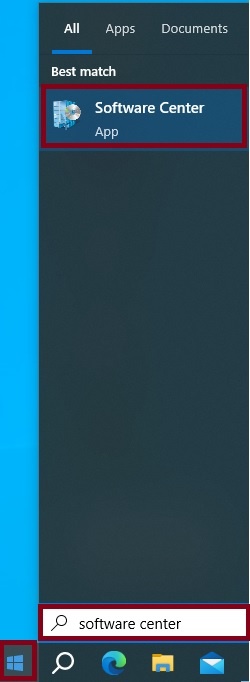
- Open the Software Center app by clicking on the Start Menu, enter Software Center in the Search bar, and select Software Center.
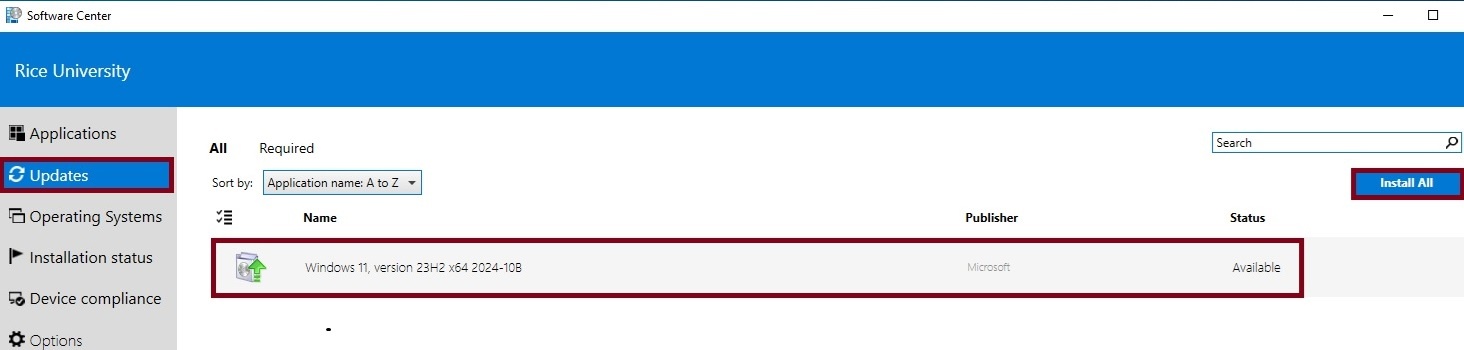
- Go to the Updates Menu. Select Windows 11 and click Install All.
- Click Install.
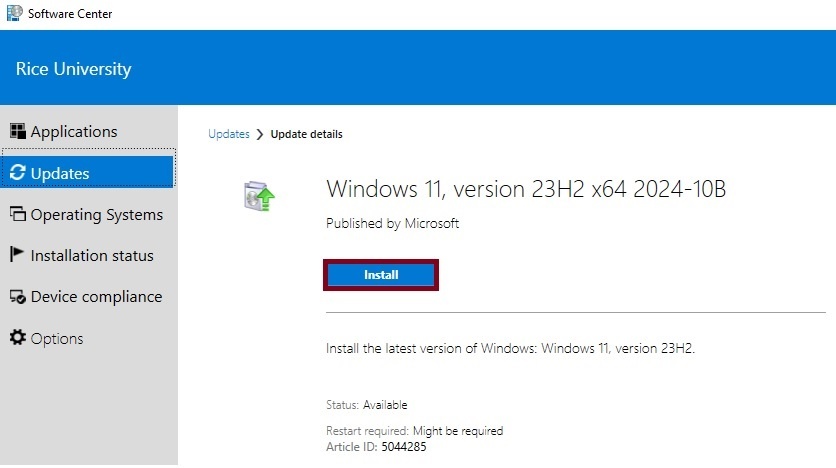
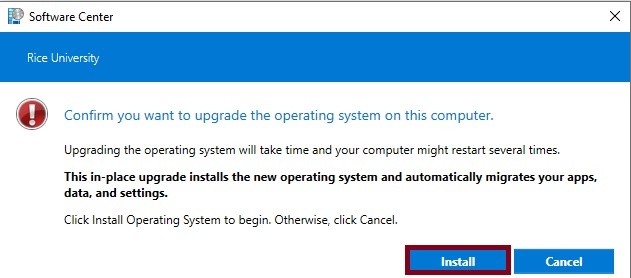
- Click Install again to confirm you want to upgrade the operating system to Windows 11.
- The installation for Windows 11 is now underway, and it may take 1-2 hours to complete. You can continue to use your machine during this stage of the installation process.
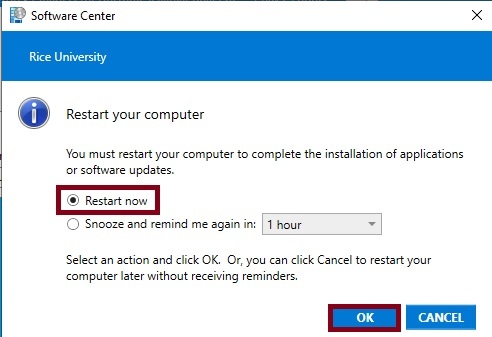
- Once the installation is complete, you will be prompted to restart the machine to complete the Win11 upgrade. Important: before restarting the machine, make sure to save all your work and close all application.
- Select Restart now, and click OK. Note that you will not be able to access the machine while the system is working on the updates. This process will take 30-60 minutes to complete and your computer may restart a few times.