TABLE OF CONTENTS
This guide was created by the staff of the GIS/Data Center at Rice University and is to be used for individual educational purposes only. The steps outlined in this guide require access to ArcGIS Pro software and data that is available both online and at Fondren Library. The following text styles are used throughout the guide: Explanatory text appears in a regular font.
Folder and file names are in italics. Names of Programs, Windows, Panes, Views, or Buttons are Capitalized. 'Names of windows or entry fields are in single quotation marks.' "Text to be typed appears in double quotation marks." |
The following step-by-step instructions and screenshots are based on the Windows 10 operating system and ArcGIS Pro 2.5.0 software with an Advanced license. If your personal system configuration varies, you may experience minor differences from the instructions and screenshots. |
This course will teach you how to download, evaluate, and prepare GIS data from public online sources and set up a project in ArcGIS Pro.
There are three ways of obtaining the tutorial data. The best option for getting the full GIS project experience is to follow Option 1 and learn how to download data from online GIS data portals. You will also gain exposure to the best GIS data websites for the Houston region. If you have limited time or if any of the data provider websites are not functional, you may download an identical version directly from the computers in the GIS/Data Center (Option 2) or online from this wiki (Option 3). Follow the applicable set of instructions below depending on the particular computer you are using.
If you choose to download the tutorial data from the source websites to practice finding and obtaining data from online sources, follow the instructions below.
The Houston-Galveston Area Council (H-GAC) is the 13-county Metropolitan Planning Organization (MPO) for the Houston region. Federal legislation requires that an MPO be designated for each urbanized area with a population greater than 50,000 people (as established by the U.S. Census Bureau) in order to conduct long-range metropolitan transportation planning and be eligible for Federal funding for transportation projects. Their mission to carry out metropolitan transportation planning means that MPOs are a great source of data on topics such as demographics, employment, land use, transportation, and environmental conditions and most of these topics are well-suited towards GIS analysis.
Most of the data provided on the H-GAC portal is not originally created by the H-GAC. Instead, the data is either aggregated from multiple municipalities up to the 13-country region, or clipped from the entire country or state down to the 13-county region. For this tutorial, we will download population and housing data from the 2010 census, which has been aggregated to census tract boundaries.

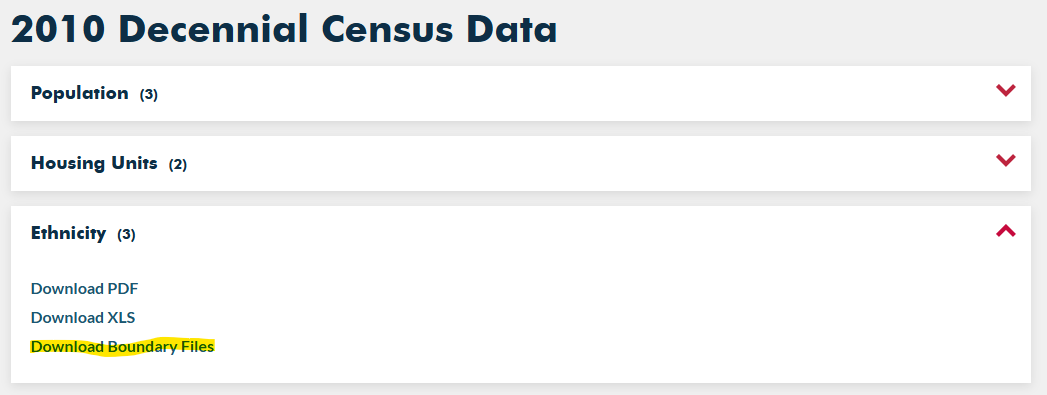
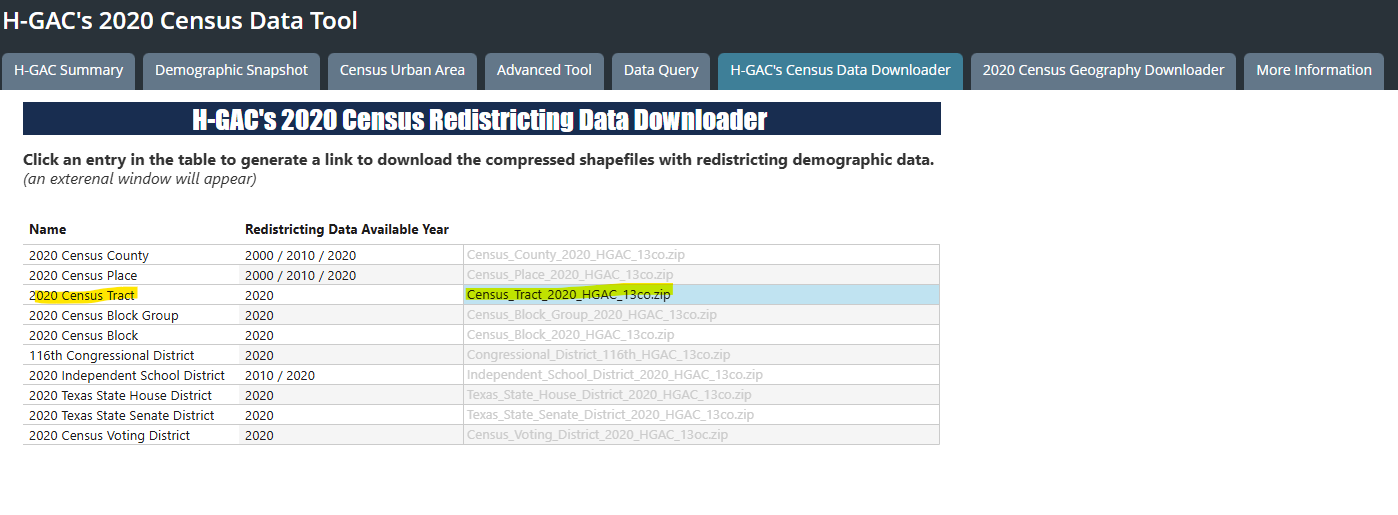




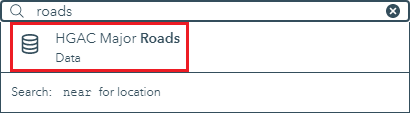
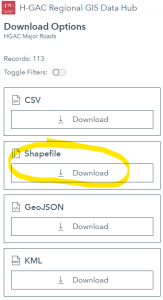
Feel free to browse through the available data and filter by categories on the left. When you are finished exploring, you will download major roads data.

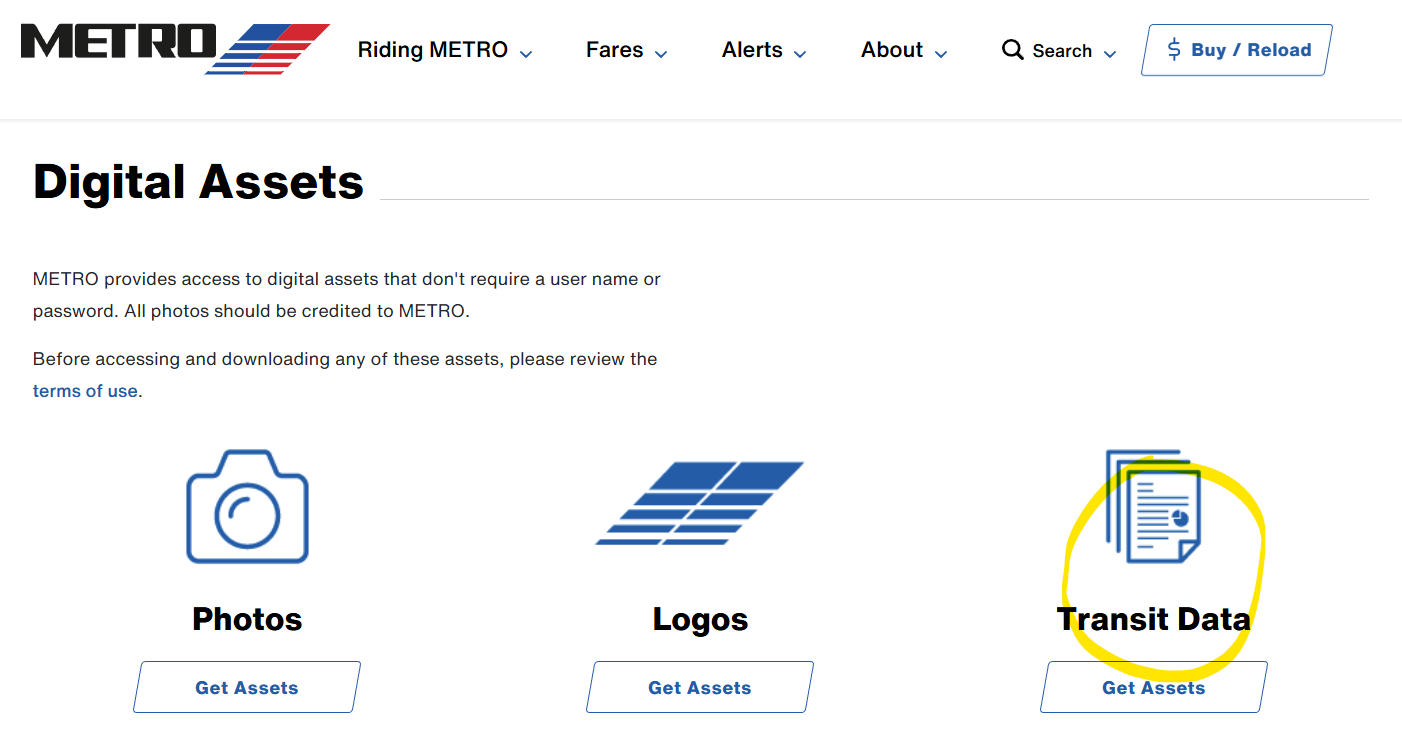
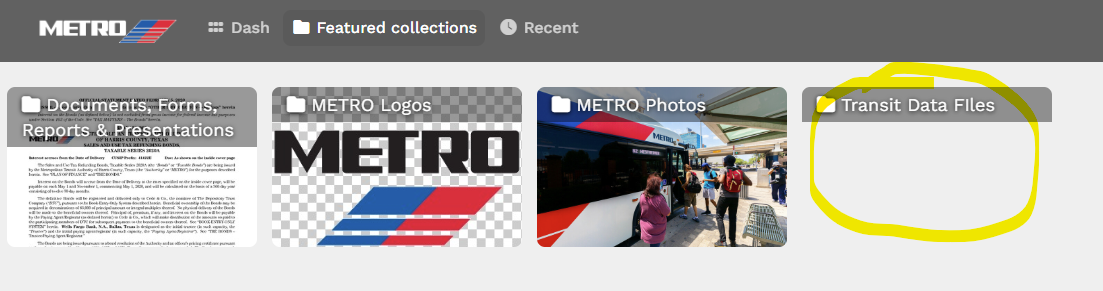
The Houston METRO website provides GIS data for the public transit system in Houston provided by METRO. While the same data is also available on the H-GAC Regional Data Hub, it is often For this tutorial, you will need the bus stops and bus routes data, which is included in the downloadable zip-file containing all of the GIS data available on the site. To obtain this data:


Though it is not used in this course, the COHGIS (City of Houston GIS) Data Hub provides over 200 data sets including administrative boundaries, amenity locations, transportation routes, crime, and flooding and is available at: https://cohgis-mycity.opendata.arcgis.com/. (Whenever you see a URL that ends in opendata.arcgis.com, you will know that you are visiting a standard ArcGIS Hub, which are commonly used by government entities for sharing GIS data.)
The Harris County Appraisal District (HCAD) Public Data website is another great source of Houston data related to land parcels and other boundaries and is available at: https://hcad.org/hcad-online-services/pdata/.
If you are completing this tutorial from a computer in Fondren Library and are logged in using the gistrain profile, follow the instructions below:

If you are completing this tutorial from a personal computer, you will need to download the tutorial data online by following the instructions below:
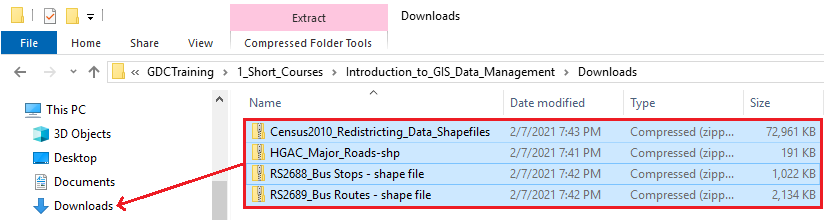
Once you have downloaded the Census and Major Roads data from H-GAC and the Bus Stops and Bus Routes data from Houston METRO, you should be able to locate the data files in your Downloads folder.
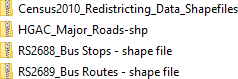
Notice that all the folders are compressed, or zipped, which allows you to download a single ZIP file, instead of numerous individual files. You can tell a folder is zipped when the 'Type' column reads 'Compressed (zipped) Folder' and the folder icon has a zipper on it. In order to view and utilize the data within ArcGIS software, you will first need to extract, or unzip, the folders.
If you have 7-Zip installed or would like to install it for free:
If you do not have 7-Zip installed:
Your data is now in an uncompressed format and ready to be brought into ArcGIS Pro.
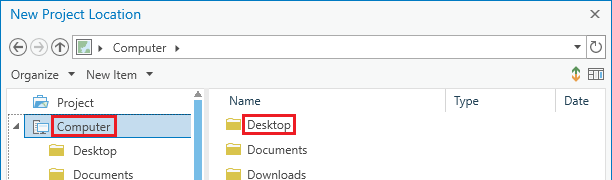
The full layout of the software will be covered in the Introduction to ArcGIS Pro tutoril. For now, all you will be using is the Catalog pane along the far right side of the application window.
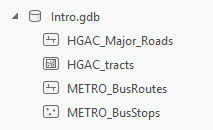
You will notice there is currently no data in the Intro project geodatabase that was automatically created when you created the Intro project. Over the next few steps, you will import the data you downloaded online from the Downloads folder to your project geodatabase.
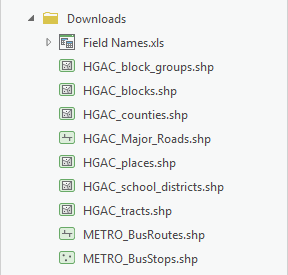
For this tutorial, we are working with vector data, which is a spatial data format that uses points, lines, and polygons to represent real features on the Earth's surface. Vector data is ideal for discrete themes with definite boundaries. A Feature Class is a vector storage format that represents a homogeneous collection of common features. There are two types of Feature Classes: a Shapefile feature class and a Geodatabase feature class. A Shapefile feature class is an open source format. Its file extension is .shp and its icon is green. A Geodatabase feature class is an Esri proprietary format. A Geodatabase feature class must be stored inside a Geodatabase (.gdb) and its icon is white. To better organize our project, we will import data into our Project Geodatabase.
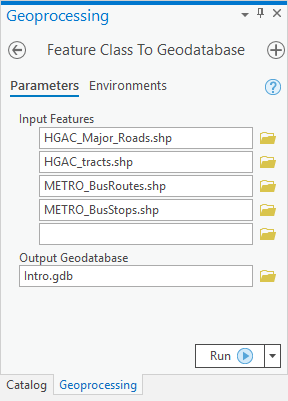
All of the data you have downloaded is in the shapefile format. Since shapefiles and geodatabases are different file formats, you must convert the data.
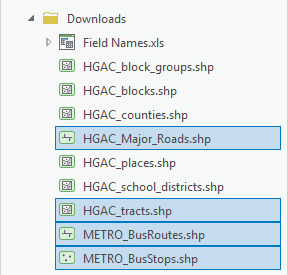
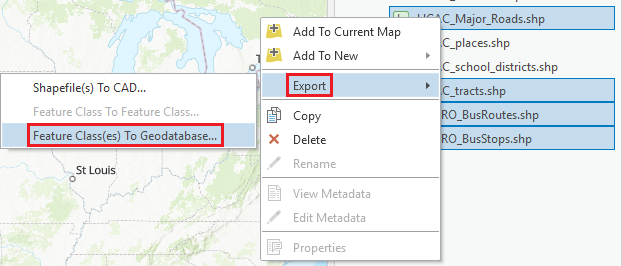
Note that the Geoprocessing pane opens on top of the Catalog pane. To toggle between the panes, you can use the tabs at the bottom of the pane.

Additional Data Sources:
https://data.capitol.texas.gov/topic/geography
https://data.capitol.texas.gov/dataset/planc2333