There are a number of different clipping methods available, depending on your needs. One method is to use the Clip tool. This tool will neatly clip your area of interest in whatever shape you set. However, if the feature you are clipping is a polygon feature with numeric count data (such as parcels or census tracts), then you may want to make sure that no polygons are cutoff. You should use Method 2 to leave uneven edges. Finally, there is a Batch Clip available, if you would like to clip many features quickly. |
The first method is to perform a Clip. This process leaves you with neat boundaries within your area of interest. If you are performing clips on more than 3 layers using this method, we recommend you use the batch method.
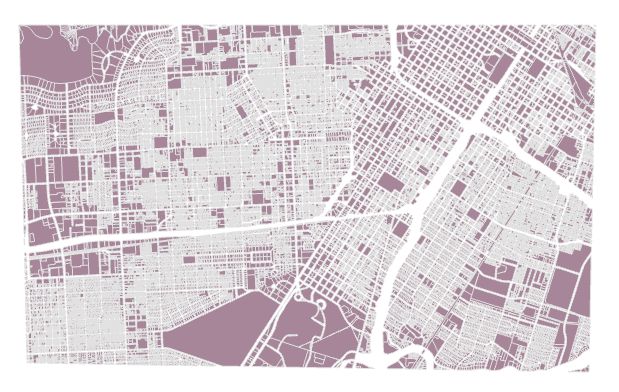
If you use method 1, your output should look something like this.
Follow these instructions:
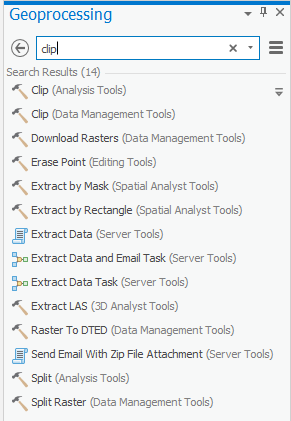
 to make a new polygon feature that contains the region you are interested about. Then click run.

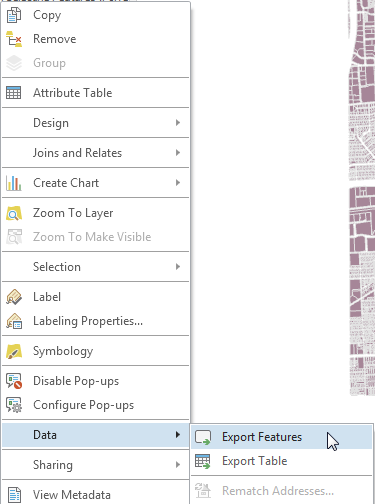
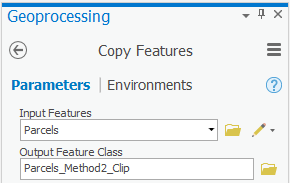
The second method available is to Export Selected Features. You should use this method for polygons with numeric count data such as parcels with value or census tracts with population count. This will ensure that no buildings are unintentionally cut off. This method is not necessary for percentages or densities.
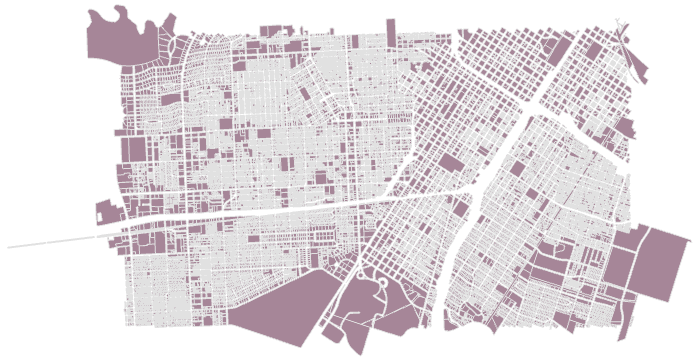
If you use this method, your output should look something like this.
Follow these Instructions.
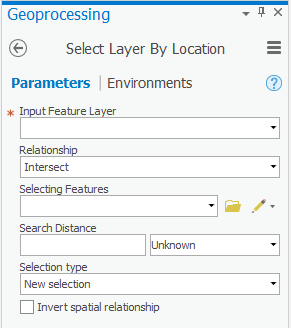 to make a new polygon feature that contains the region you would like. The pane should look something like this.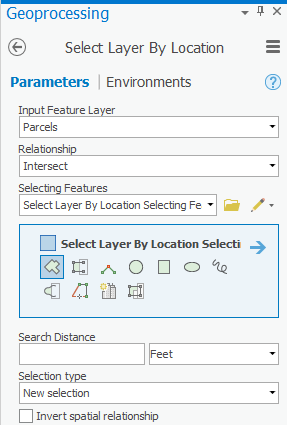
Batch clipping is a feature of ArcGIS Pro v2.2 and later. It is when you use the typical clipping process however you are able to clip multiple layers at once. Further instruction can be found via the link below.