Note: You can only archive email in the Outlook desktop app (Classic version only, not the new Outlook). This feature is also not available in Outlook Web App.
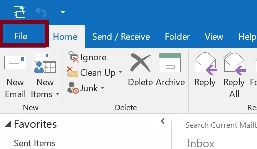
- Click the File Menu in Outlook.
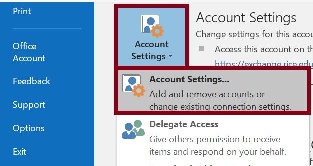
- Go to Account Settings and click Account Settings...
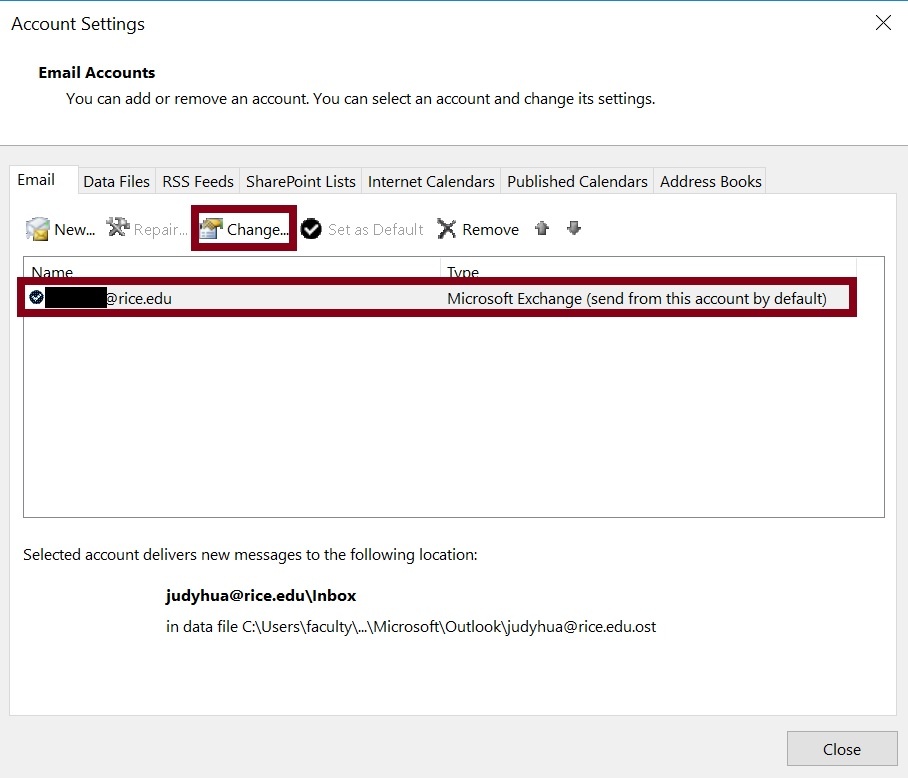
- Select your Rice Exchange account and click Change.
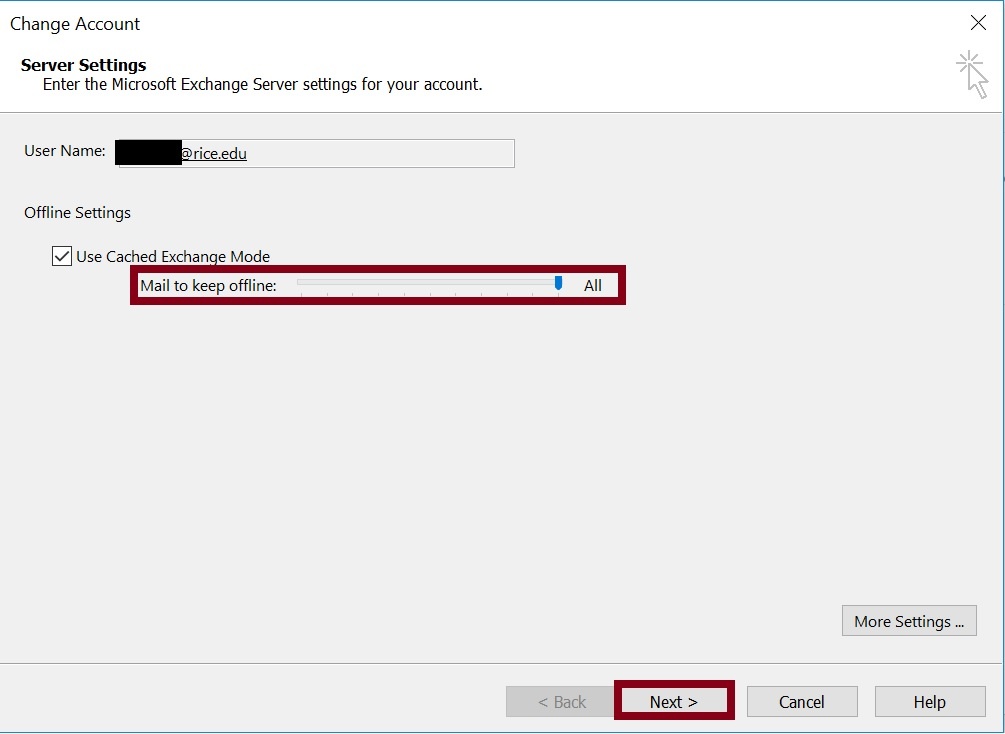
- Set the slider to All by moving it towards the right (this will allow for all your email to be archived). Then click Next.
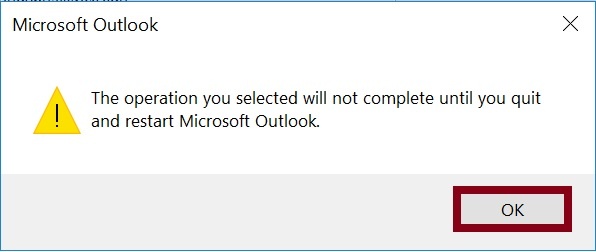
- Click OK.
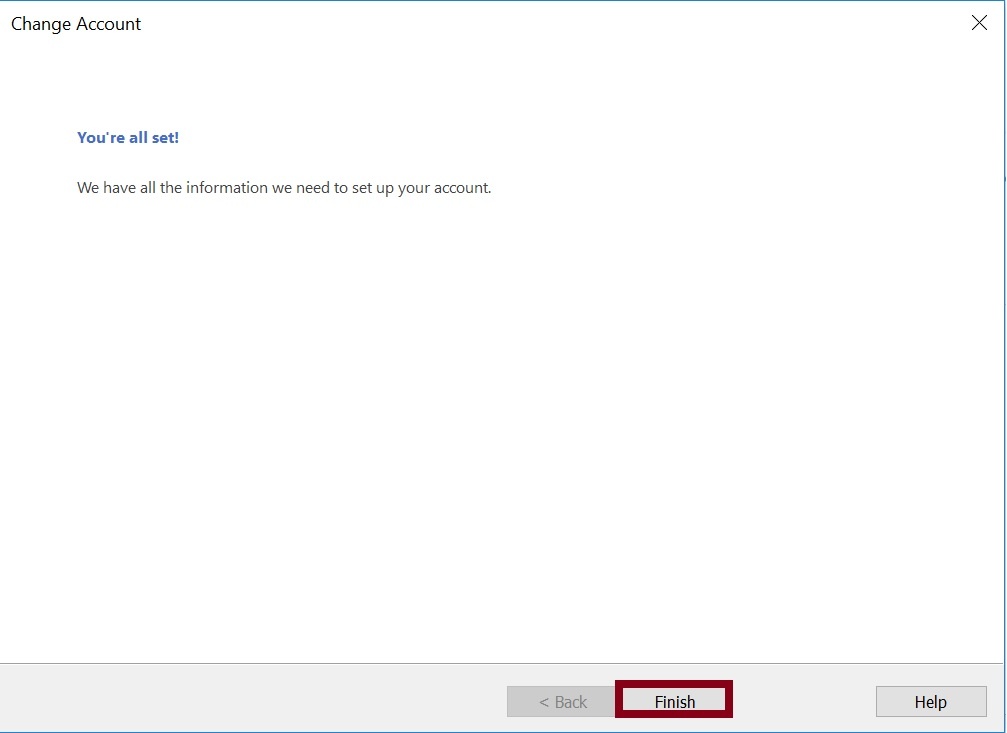
- Click Finish.
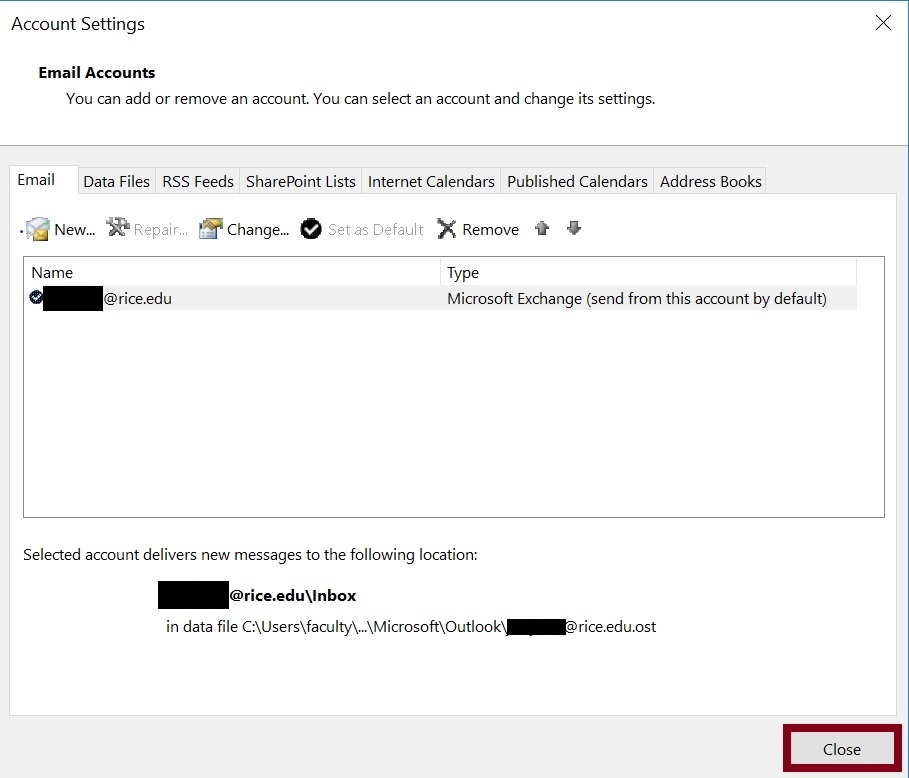
- Click Close.
- Quit and Restart Outlook.
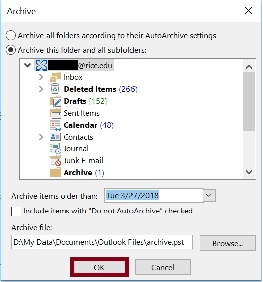
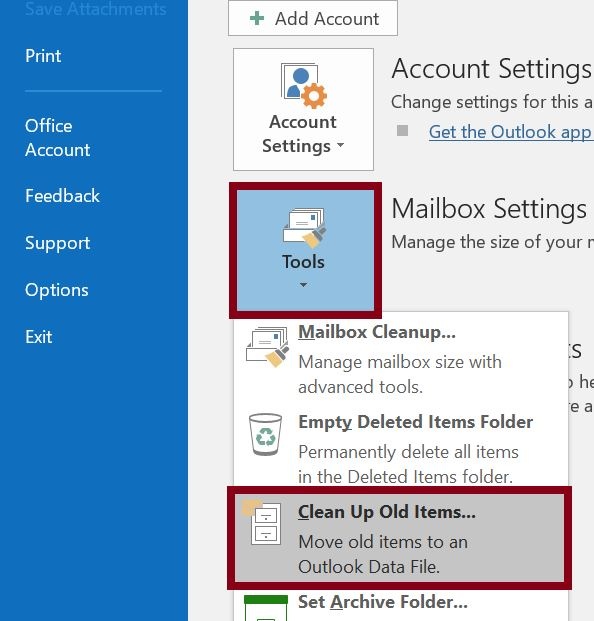
- Click the File Menu. Select Tools then click on Clean Up Old Items...
- Click to change the folder selection from Inbox to your entire NetID@rice.edu account where "NetID" is your personally assigned Rice username.
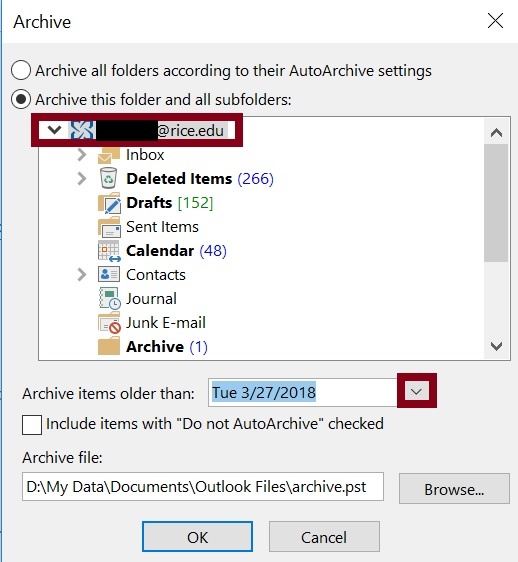
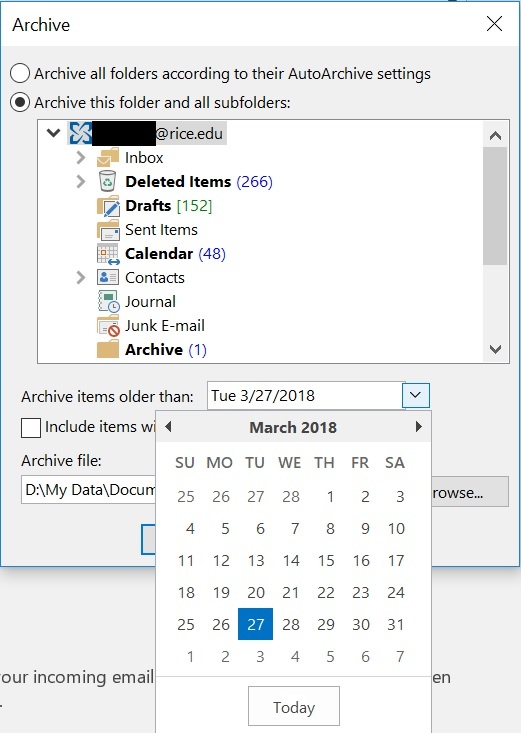
- Specify a date next to Archive items older than (graduating students will want to select the current date to archive all items).
- Click OK.