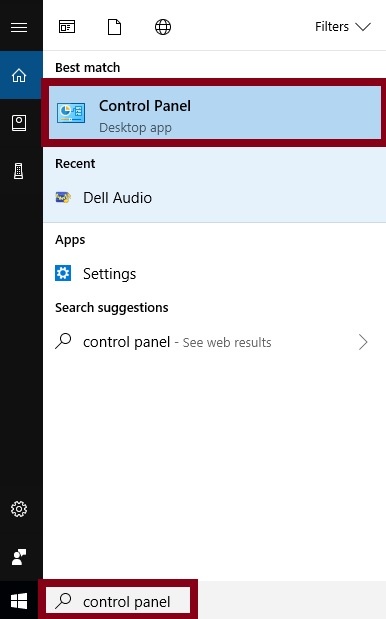
- In the search box on the taskbar, type control panel, and then select Control Panel.
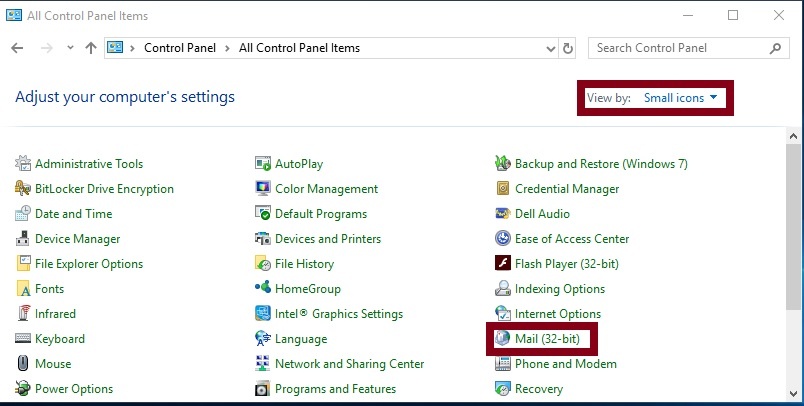
- Switch to the Small icons view if necessary, then click the Mail App.
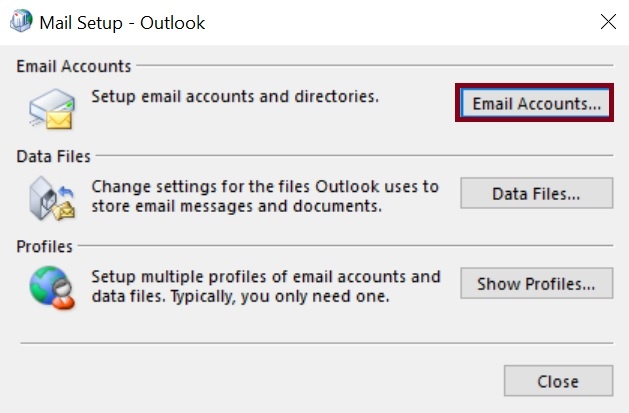
- Click on Email Accounts...
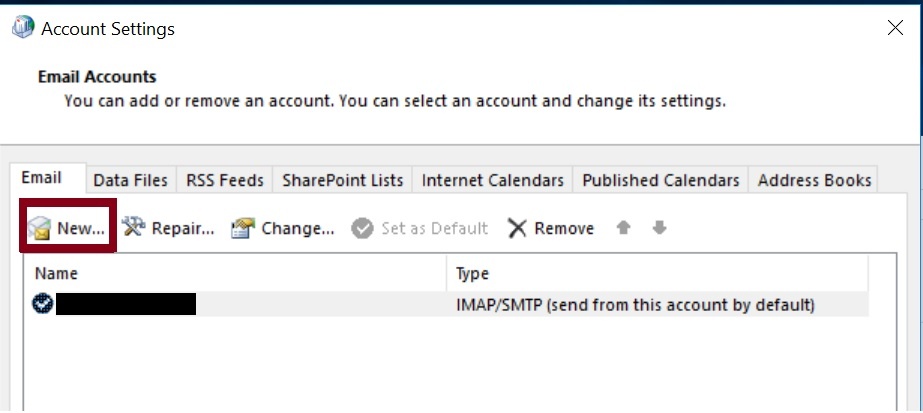
- Click New.
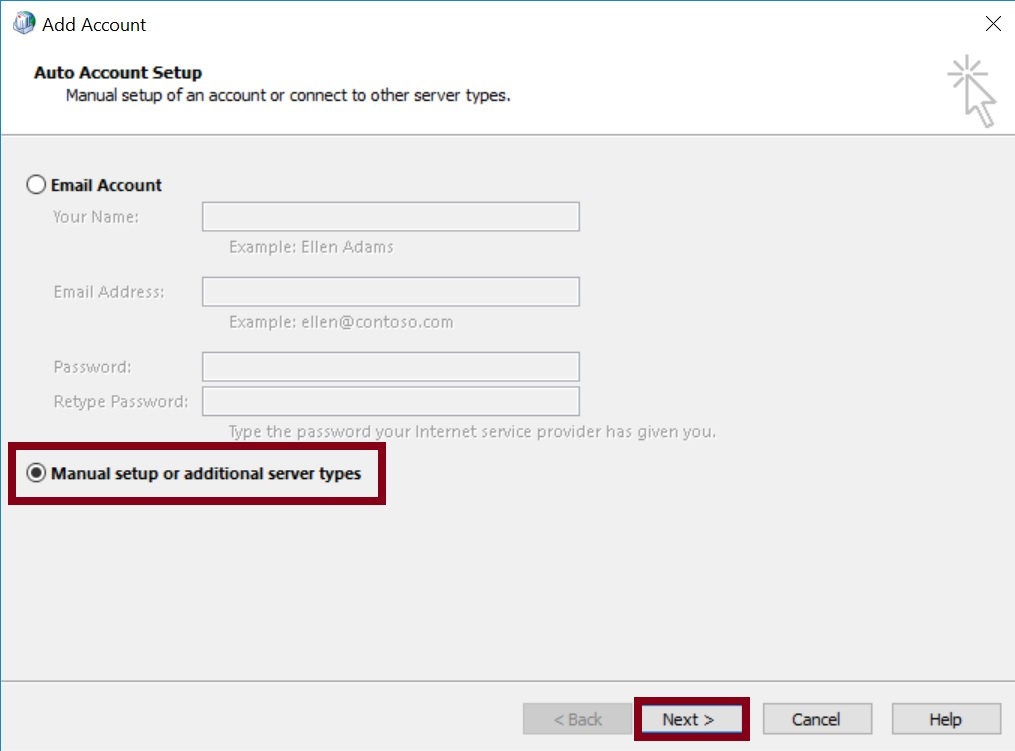
- Select Manual Setup or additional server types, then click Next.
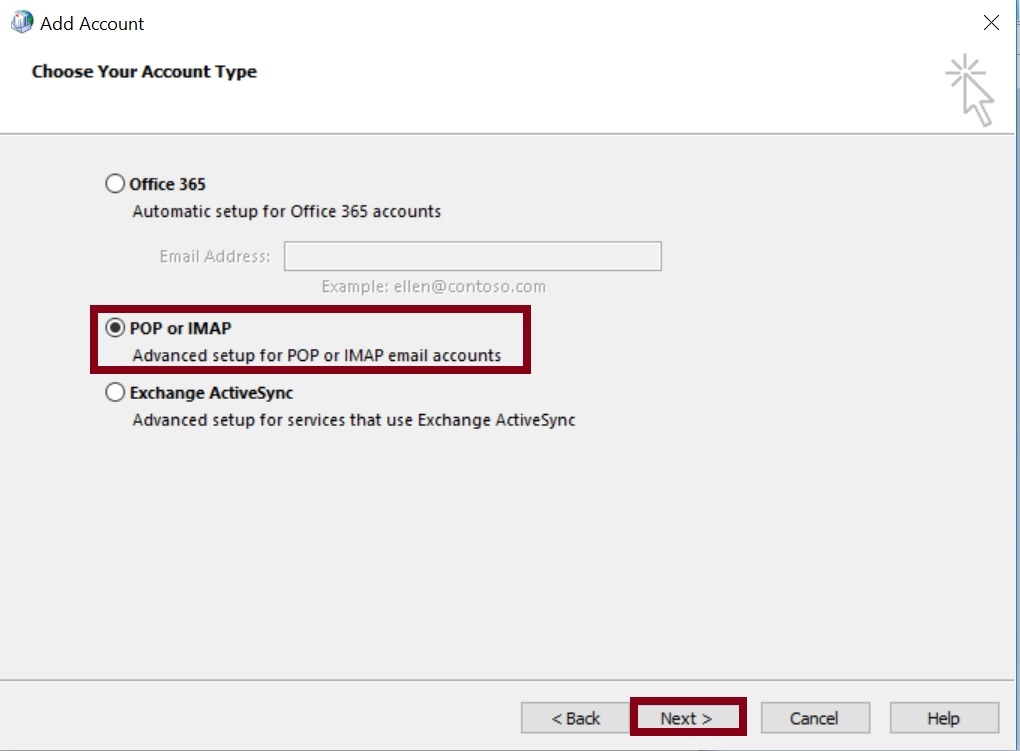
- Select POP or IMAP, then click Next.
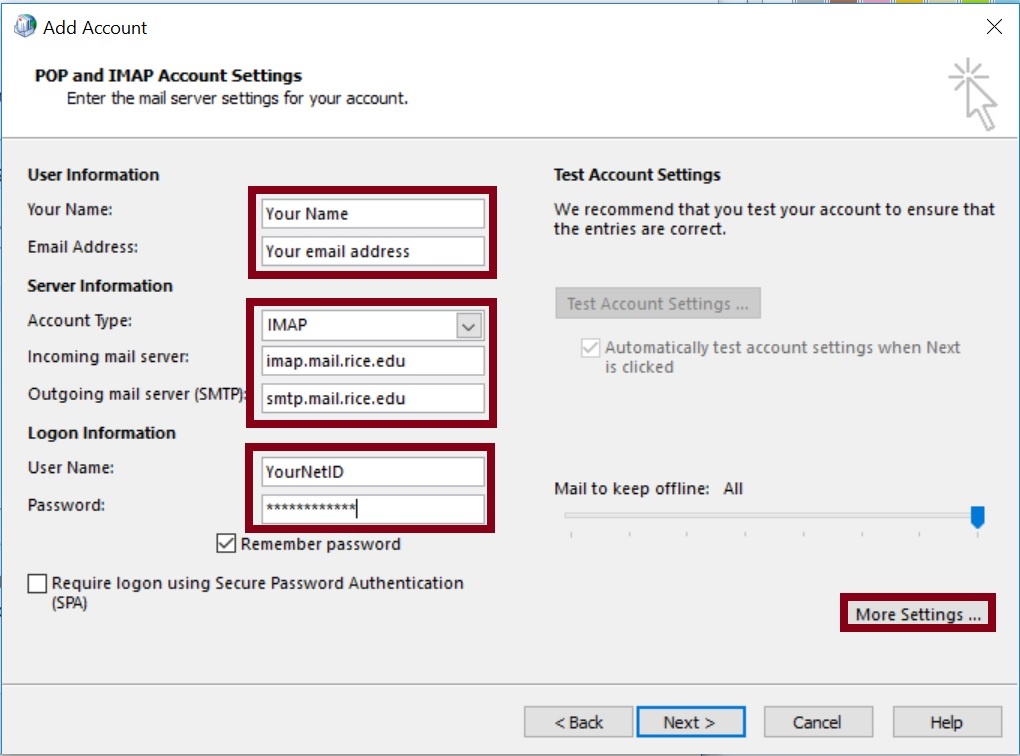
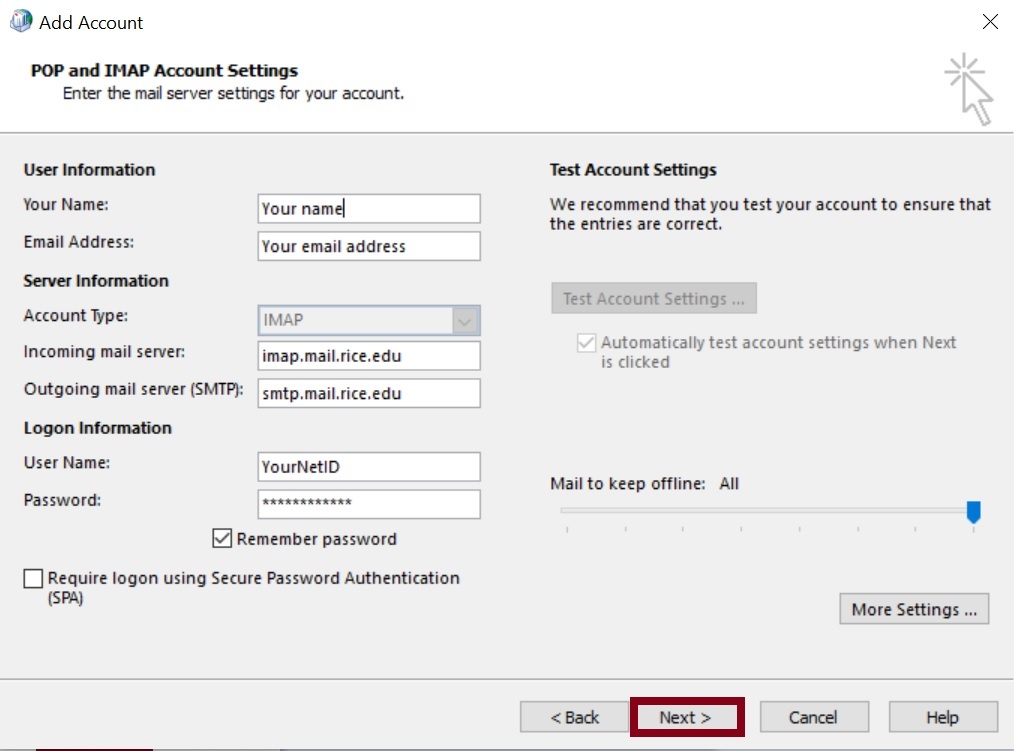
- Perform the following on this screen.
- In the Your Name field, enter your name.
- In the E-mail Address field, enter your Rice e-mail address.
- In the Account Type drop-down menu, select IMAP.
- In the Incoming mail server field, enter imap.mail.rice.edu.
- In the Outgoing mail server (SMTP) field, enter smtp.mail.rice.edu.
- In the User Name field, enter your netID. "netID" being your personally assigned Rice username.
- In the Password field, enter your Rice password.
- Make sure Remember Password is checked.
- Make sure Require logon using Secure Password Authentication (SPA) is unchecked.
- When you are sure everything is correct, click More Settings
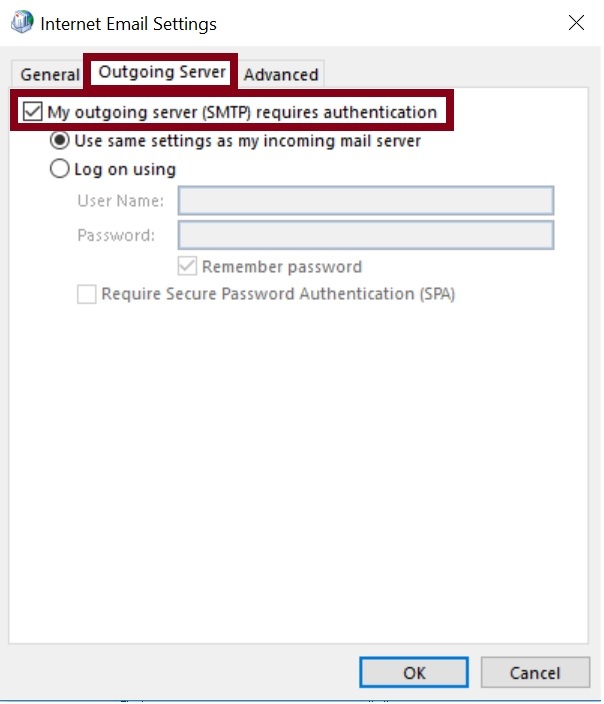
- Go to the Outgoing Server tab, check the box next to My Outgoing server (SMTP) requires authentication.
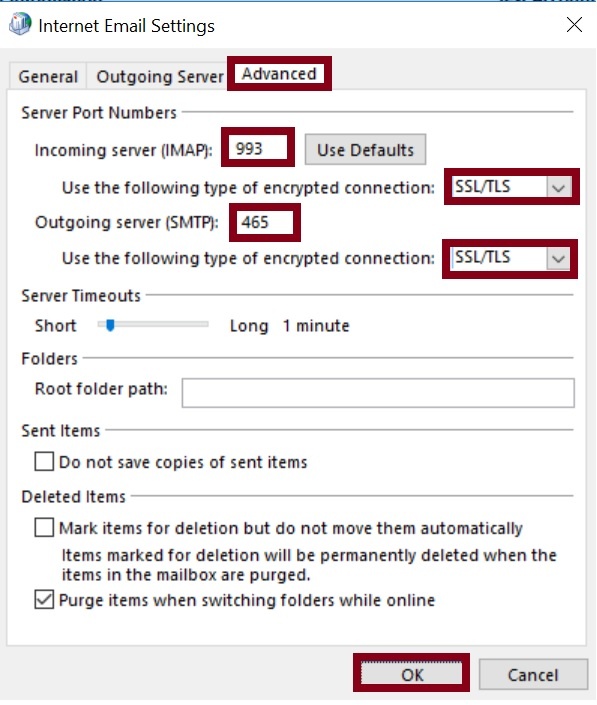
- Go to the Advanced tab:
- For both servers from the Use the following type of encrypted connection: drop-down menu, select SSL/TLS.
- In the Incoming server (IMAP) field, enter 993.
- In the Outgoing server (SMTP) field, enter 465.
- When finished, click OK
- Click Next.
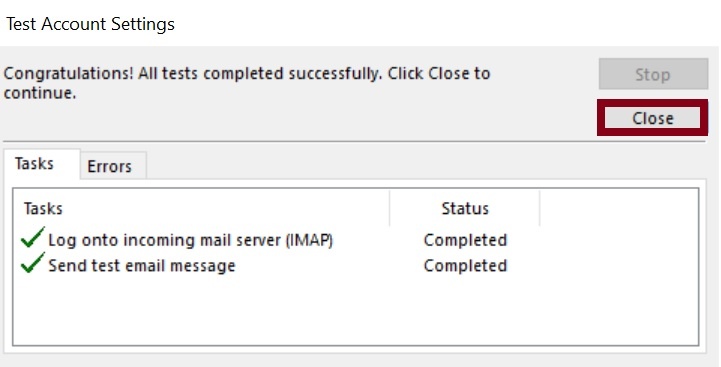
- Click Close.
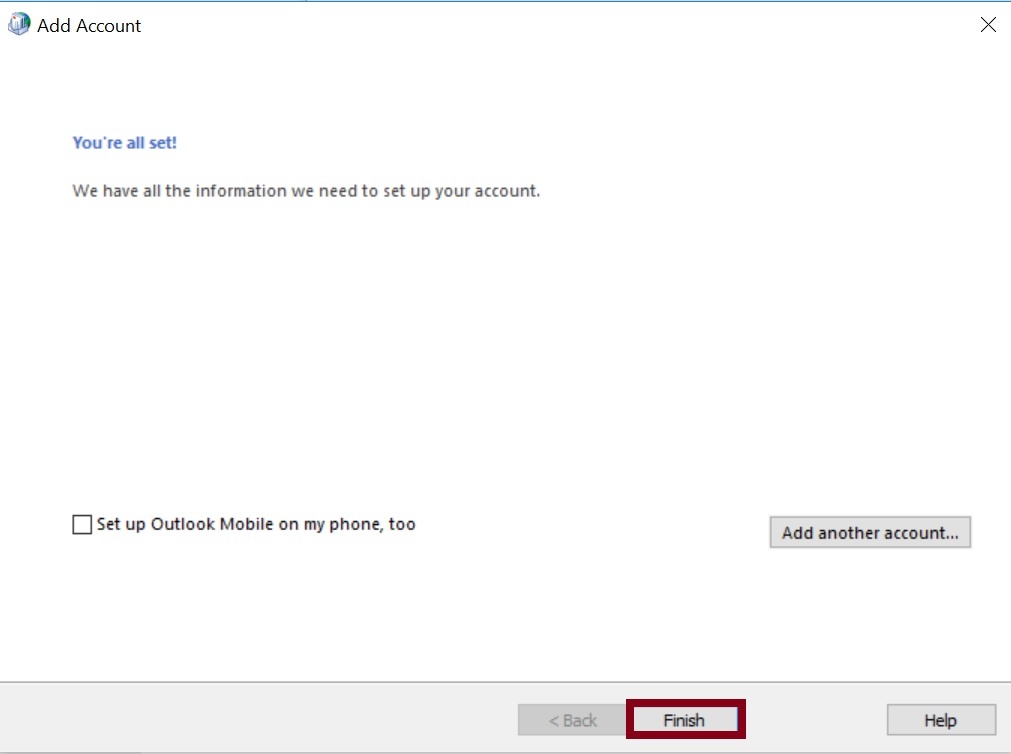
- Click Finish.
- Click Close.
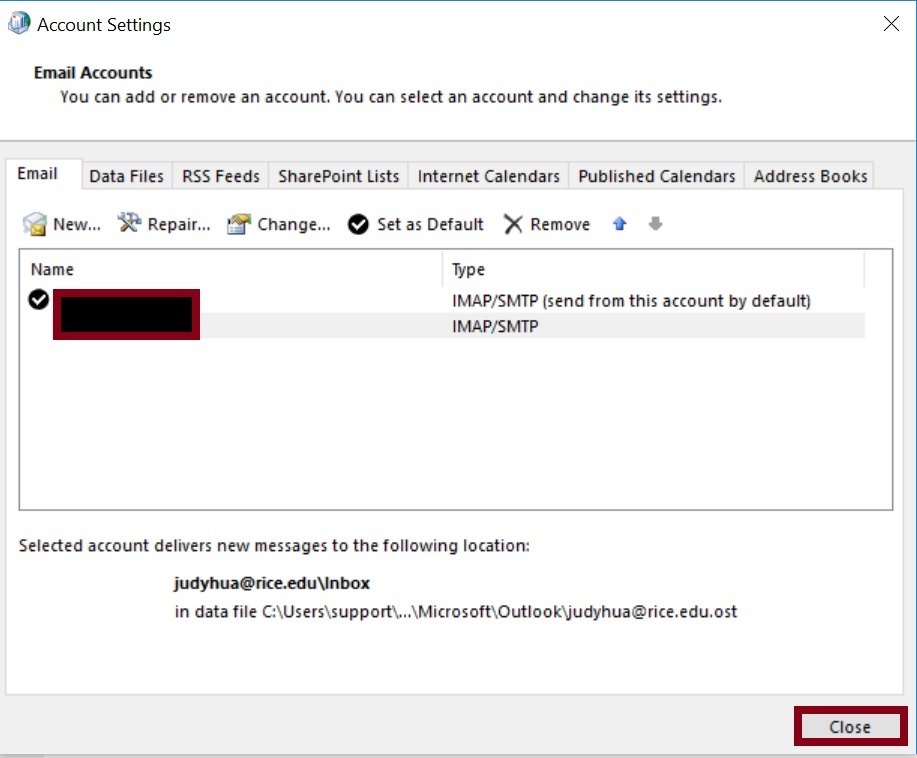
- Click Close.
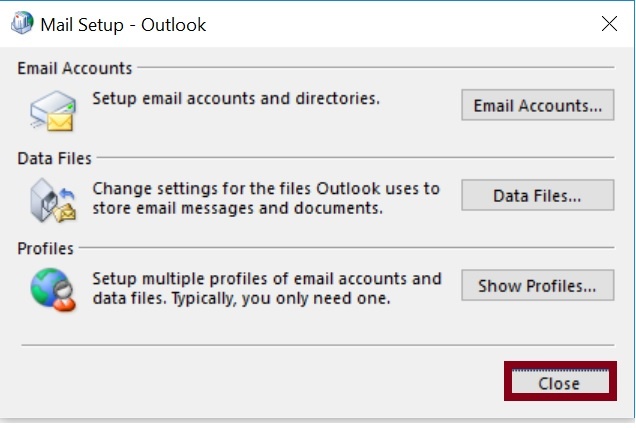
- Setup complete. Launch Outlook to check your mail.