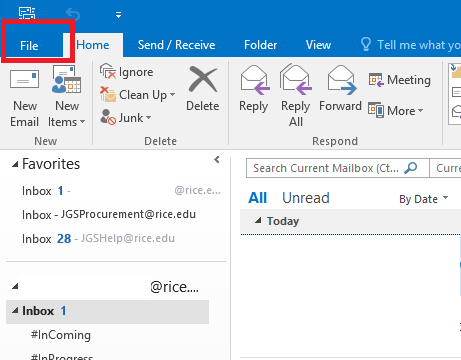
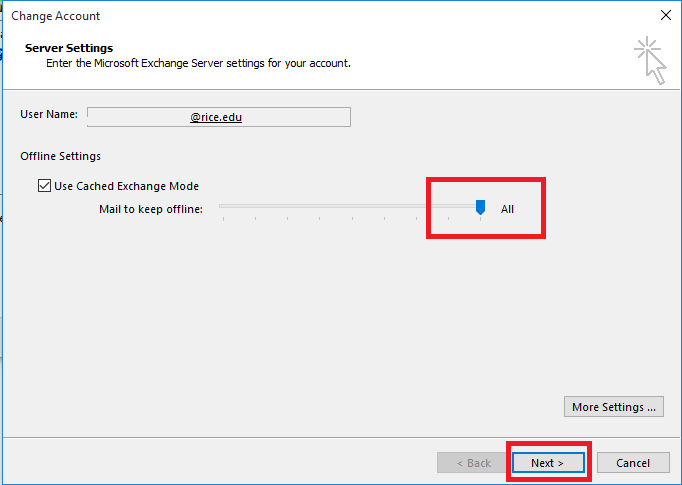
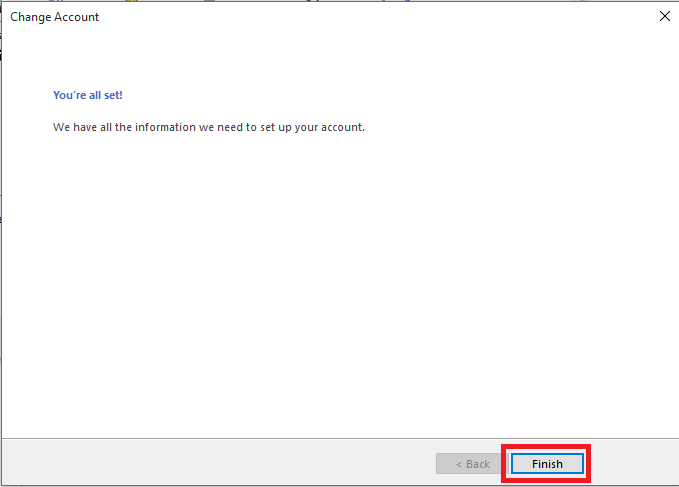
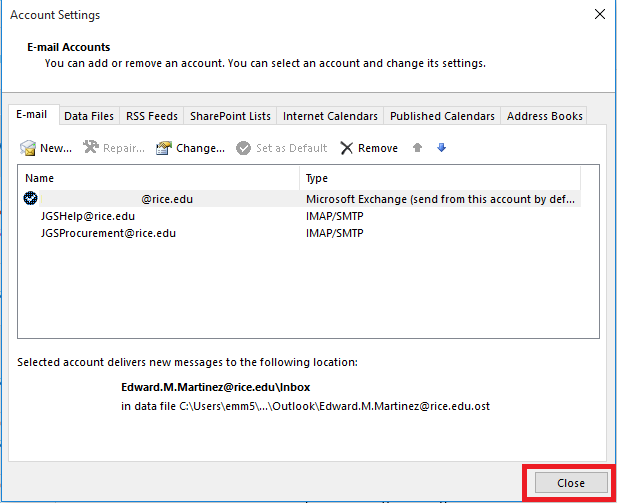
7. Click the File menu in Outlook.
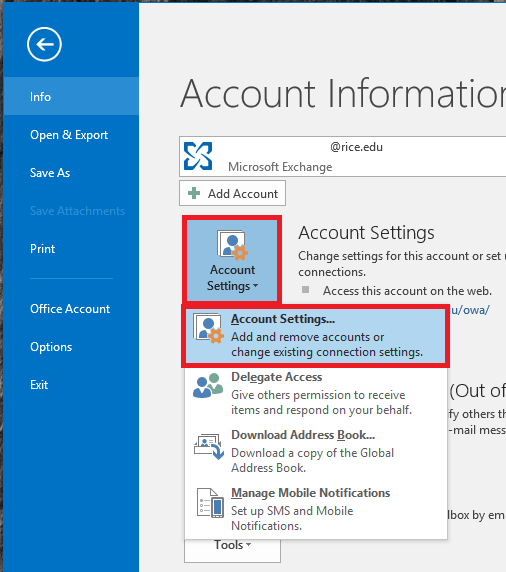
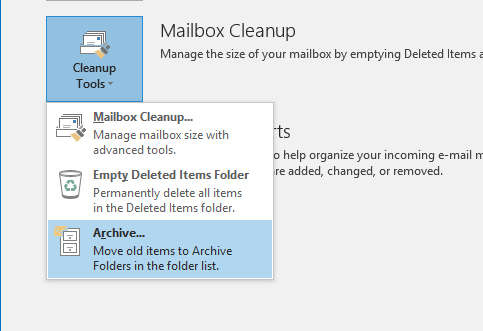
8. Click the Cleanup Tools button and select "Archive"
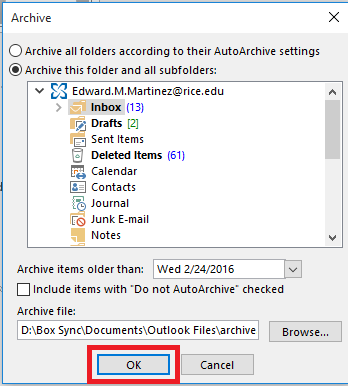
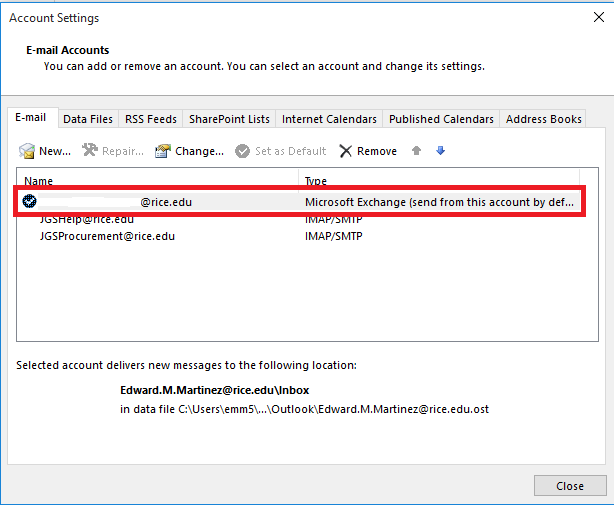
9. Click on your entire firstname.lastname@rice.edu account to highlight.
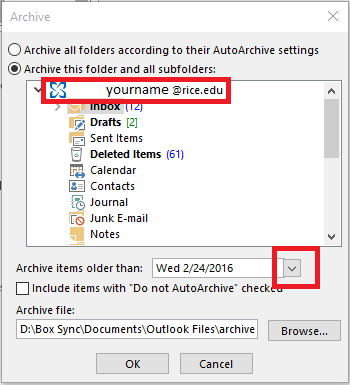
10. Click the drop down menu next to the field for "Archive items older than:"
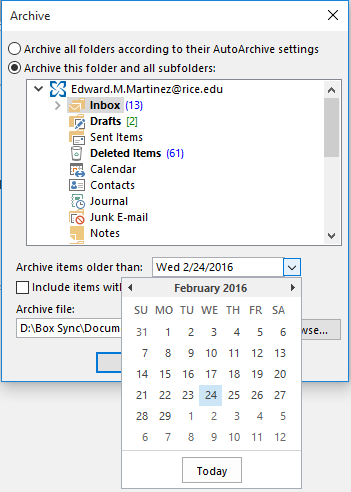
11. Select the date that you would like to archive items older than. Be careful not to choose a date too close to the current one or in the future.
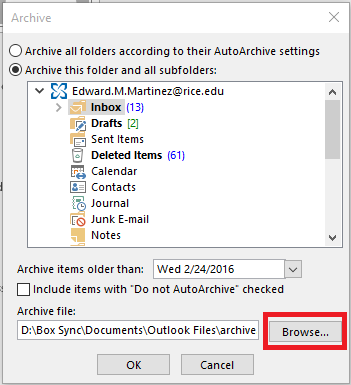
12. Click the Browse button.
13. Choose a location for your Archive file and click OK. CHOOSE A LOCATION THAT YOU WILL BACK UP REGULARLY. WE CANNOT BE RESPONSIBLE FOR LOSS OF DATA ON PERSONAL MACHINES.
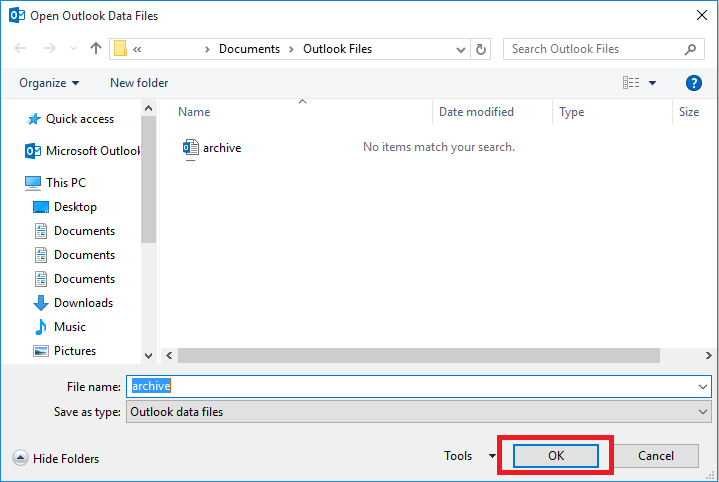
14. Click OK.