SPSS 28 Installation Instructions
1. Click HERE to access the SPSS 31 installation file.
2. Click Download in the upper-right menu to download the software.

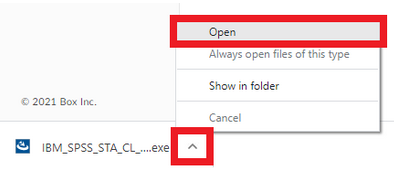
3. Chrome users click Open and proceed to the next step.
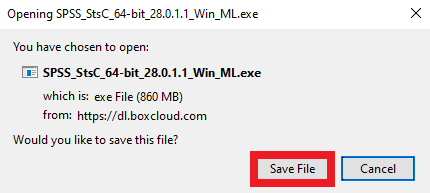
*Firefox users, click the Save File option and proceed to the next step.
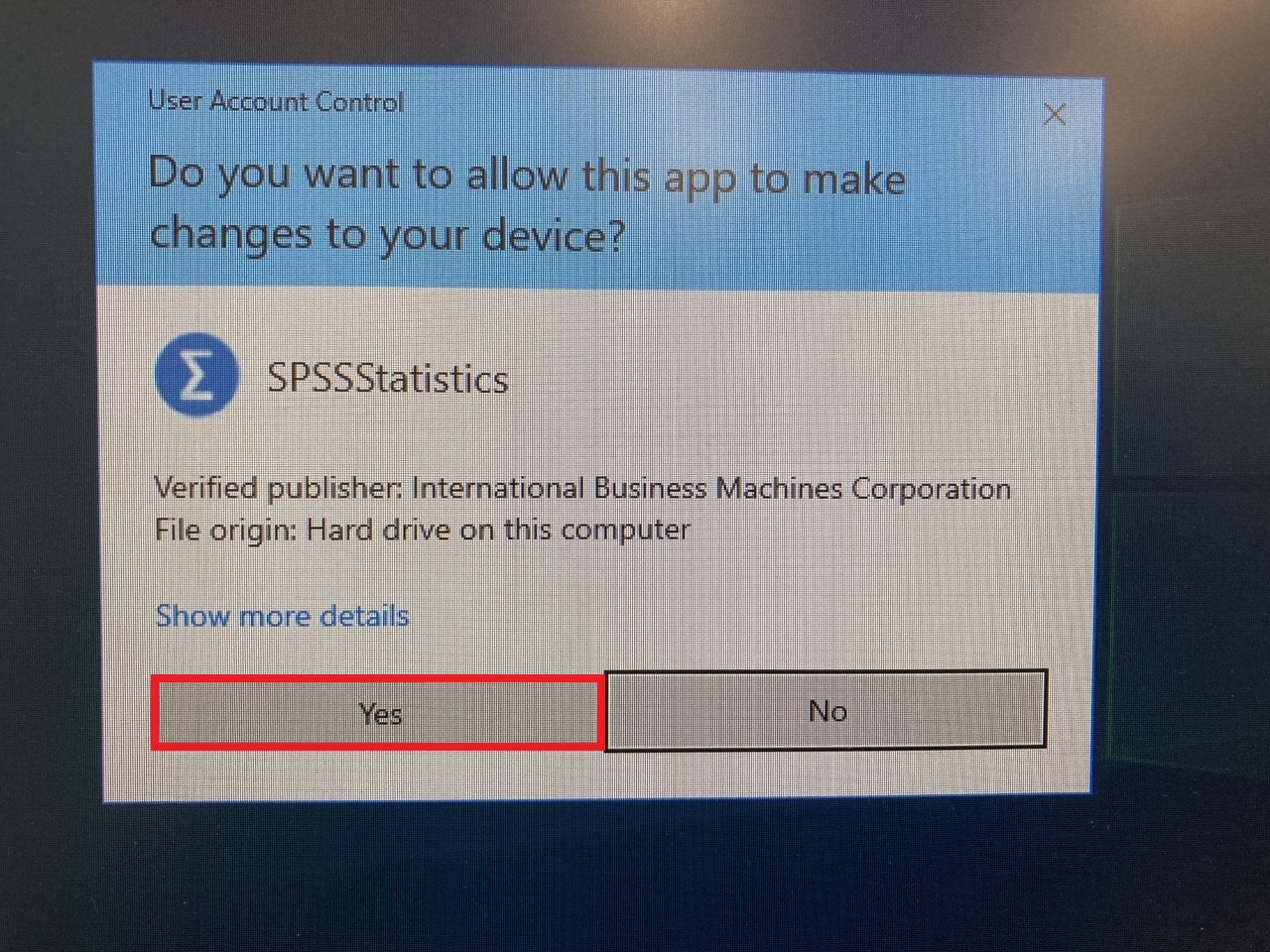
4. Click Yes to begin the install.
5. Click Next.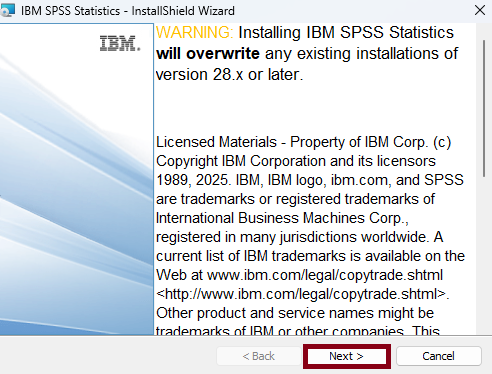
6. Click the radio button next to 'I accept the terms in the license agreement', then click Next.
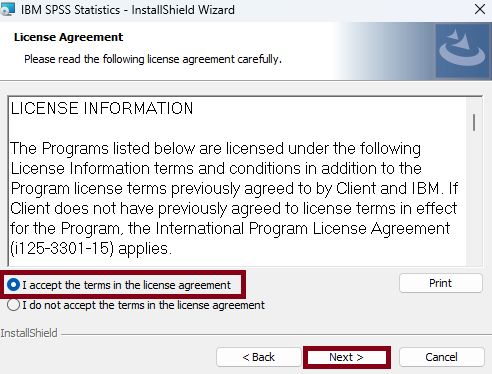
7. Click Next.
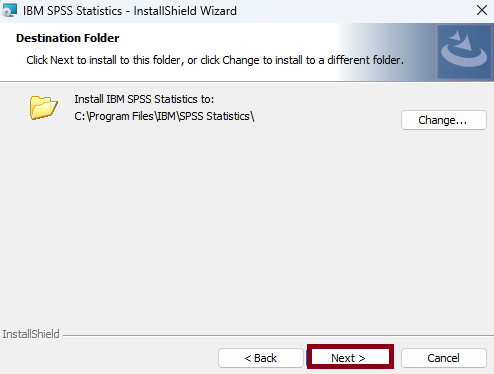
8. Click Install.
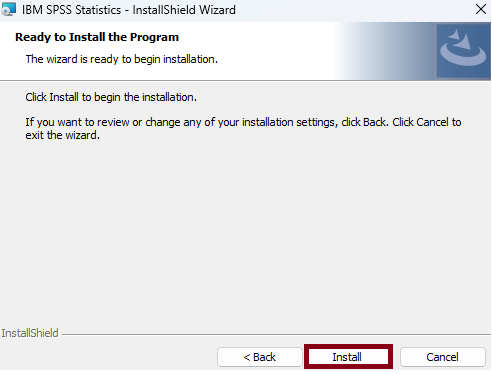
9. Click Finish.
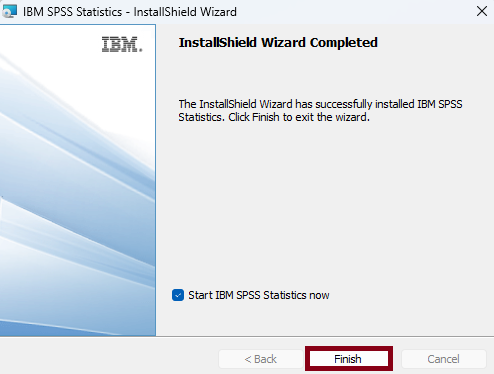
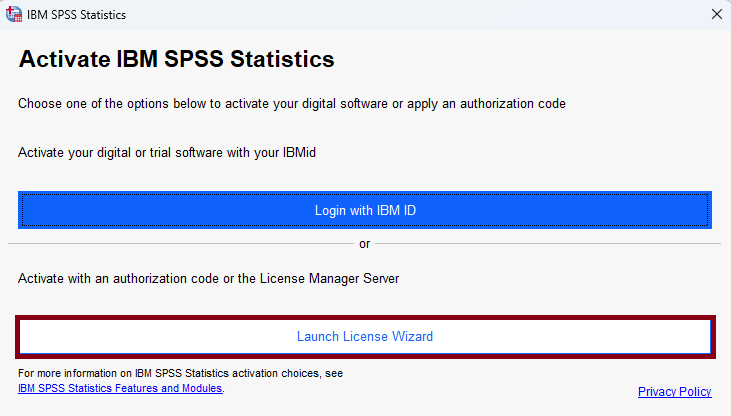
10. Select Launch License Wizard.
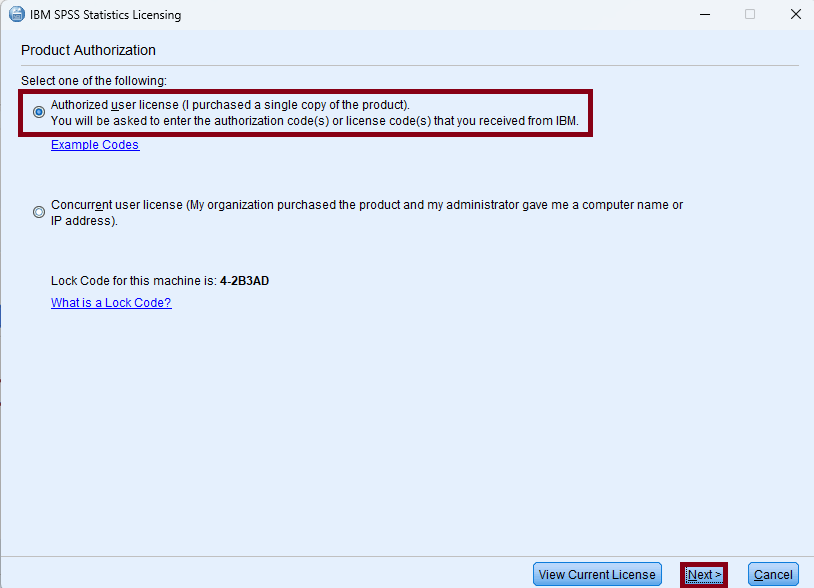
11. Select 'Authorized user license', then click Next.
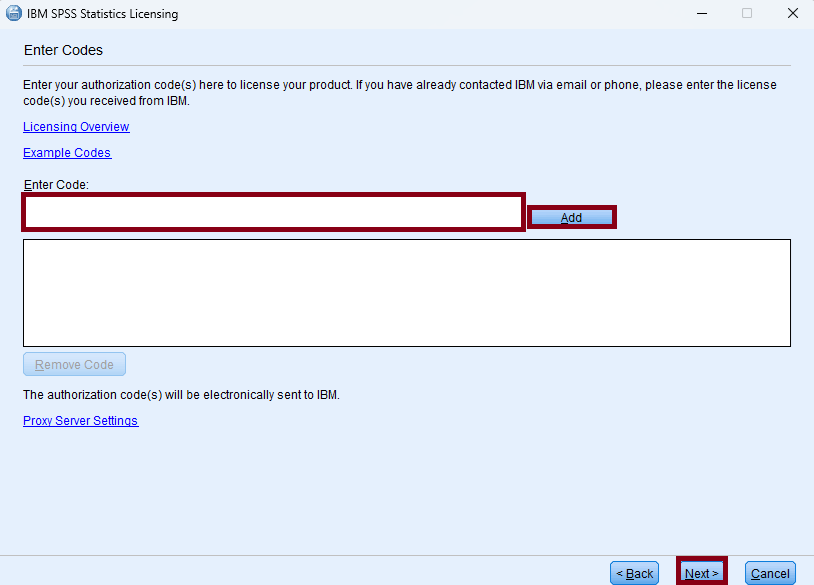
12. Type or paste the SPSS authorization code sent to you via email. Click Add, then click Next.
12. Click Next.
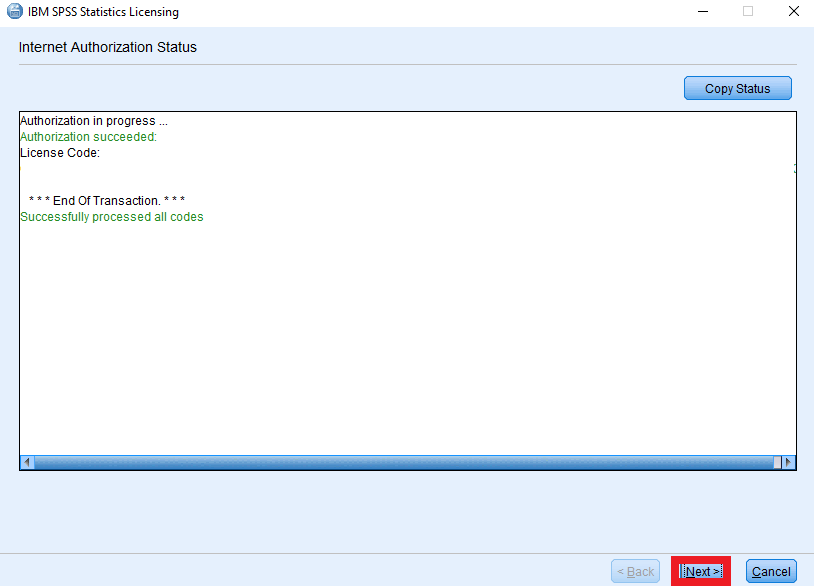
13. Click Finish.