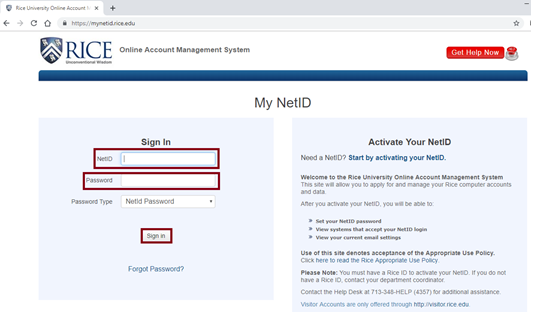
- Log into in to https://mynetidwhooru.rice.edu
- Click on Two-Factor Authentication
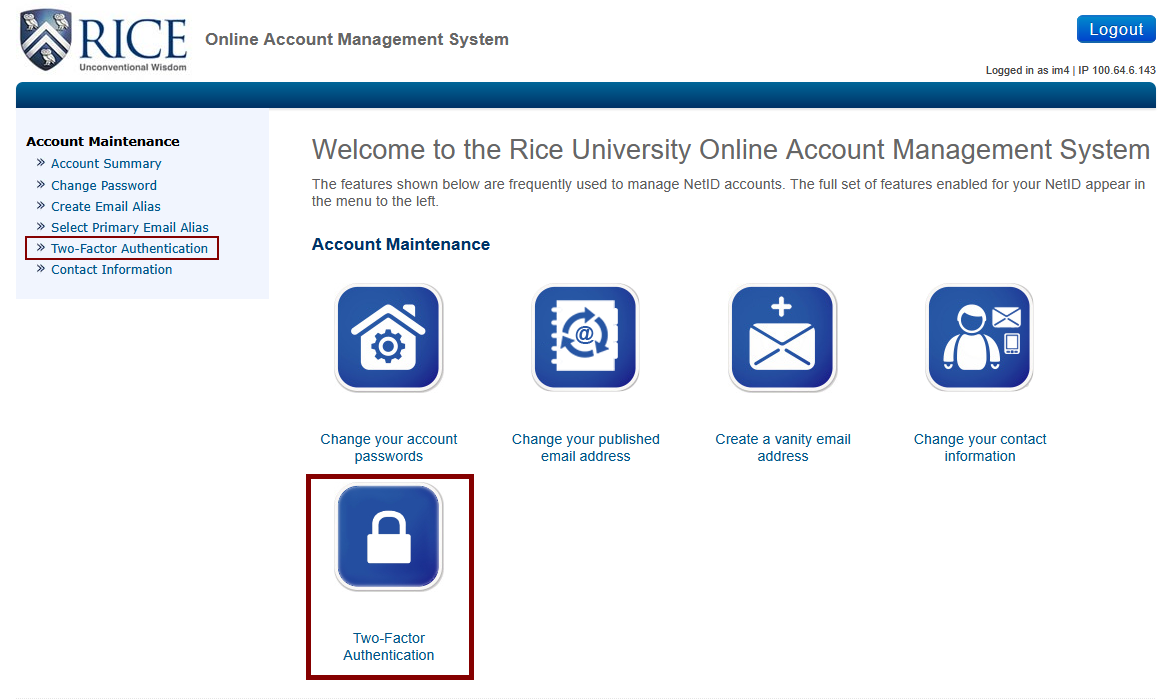
- Under Two-Factor Authentication Settings, click on the "Device Management Portal" button.
- A prompt will appear asking you to "Check for a Duo Push". Click on "Other options" link to see additional options.
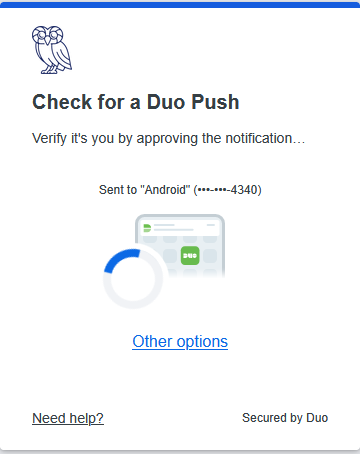
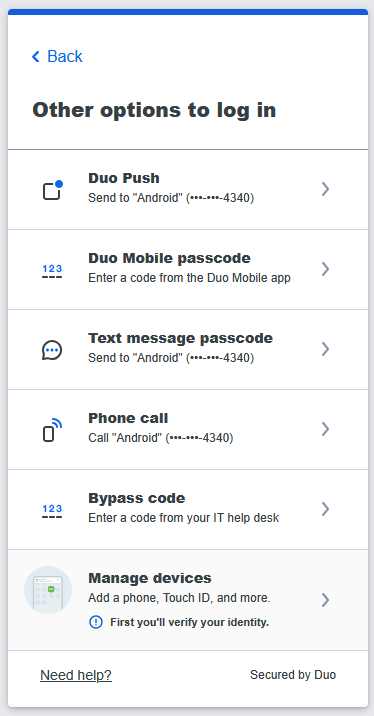
- Choose "Manage Devices" to add an additional device.
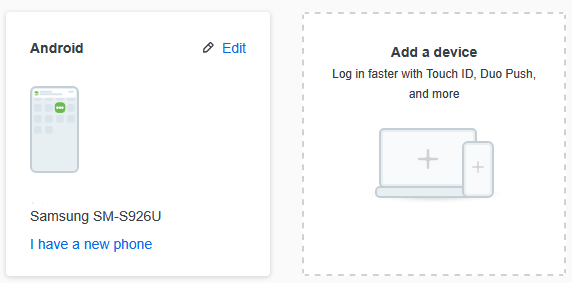
- You might get prompted again to verify your authentication, and then you will be redirected to a page that will allow you to add a device.
...
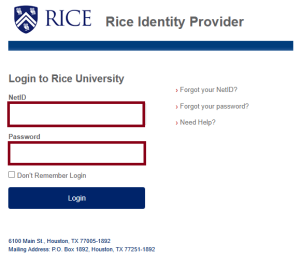
- Authenticate to DUO when prompted.
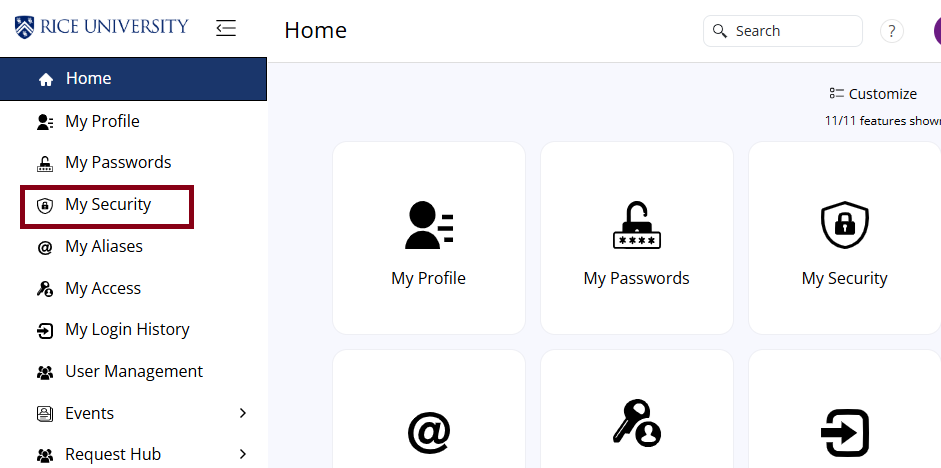
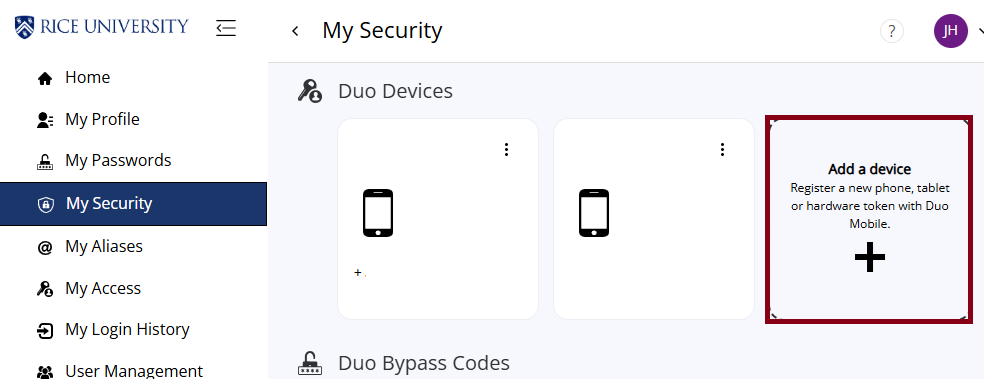
- Click on My Security.
- Click on Add a device.
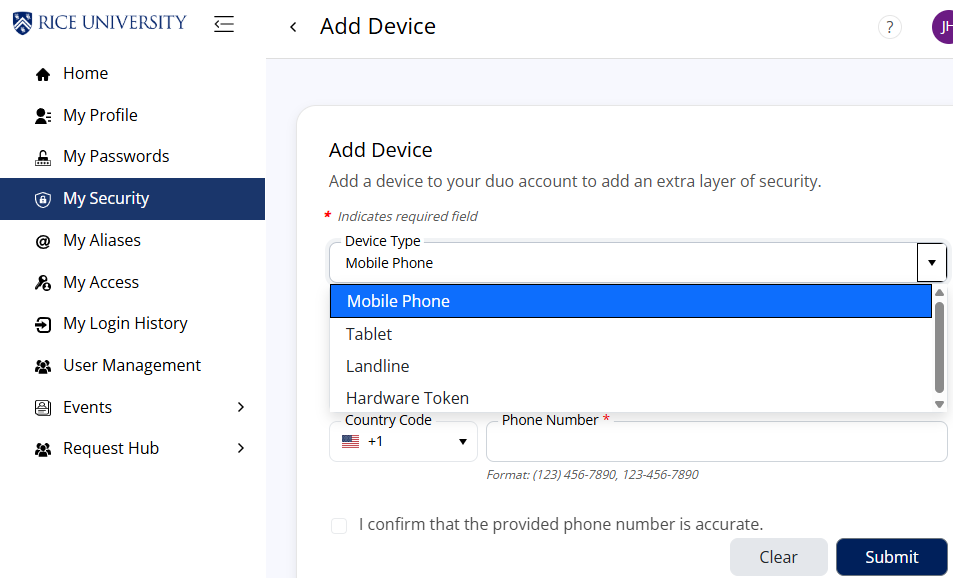
- Select the Device Type.
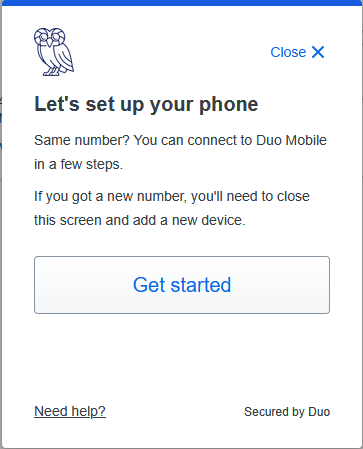
- You will be asked to Download Duo Mobile on your new phone, then click "Next" button
- Scan the code that appears on the screen on your Duo Mobile on the new phone, or you can request an activation link by clicking on "Get an activation link instead."
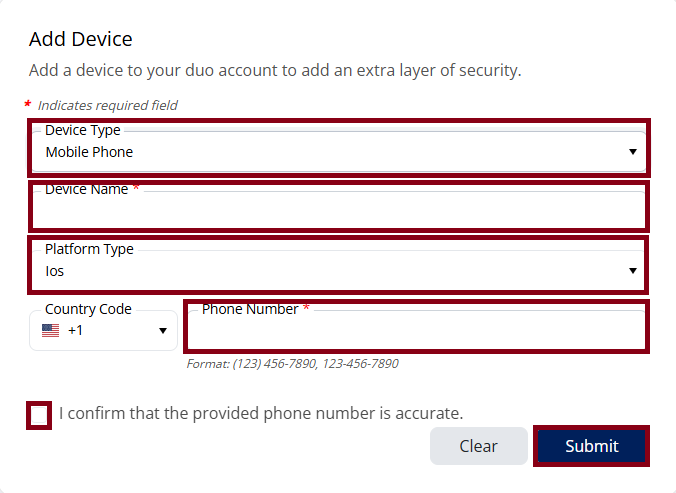
- Once activated, your new phone will be ready to use with Duo Mobile.Fill in the required information and click Submit.