1. Click here to download the Pcounter client.
2. You will see this page on the web browser and click Download.

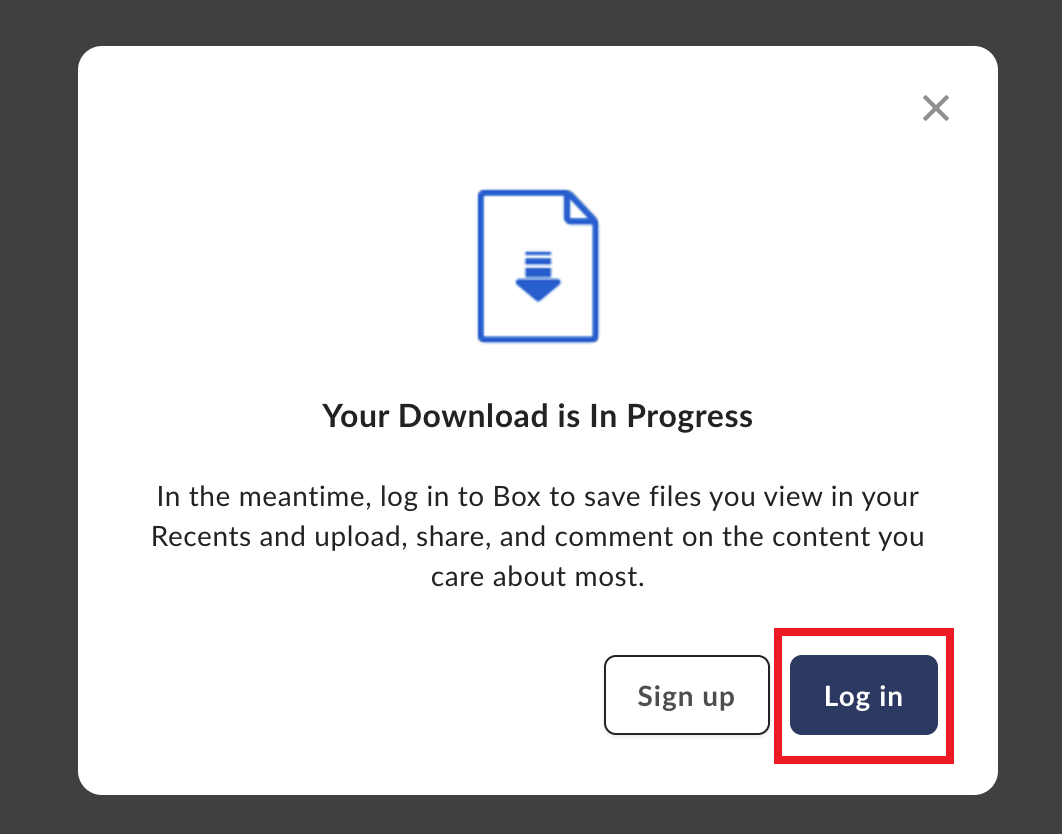
3. Click on the "Login" option to log in to Rice Box and get the Pcounter client.
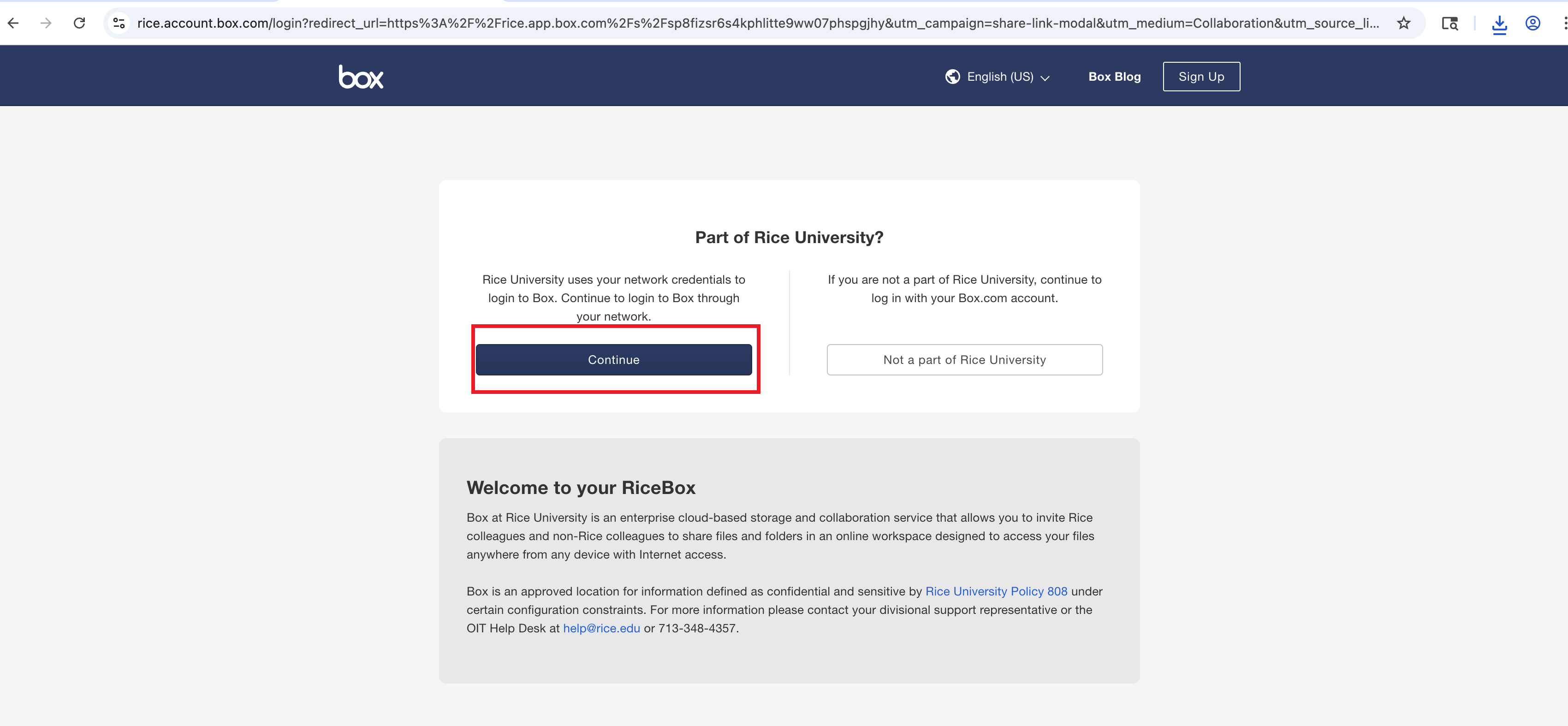
4. Click "Continue" to proceed to login to Rice Box and get the Pcounter Client.
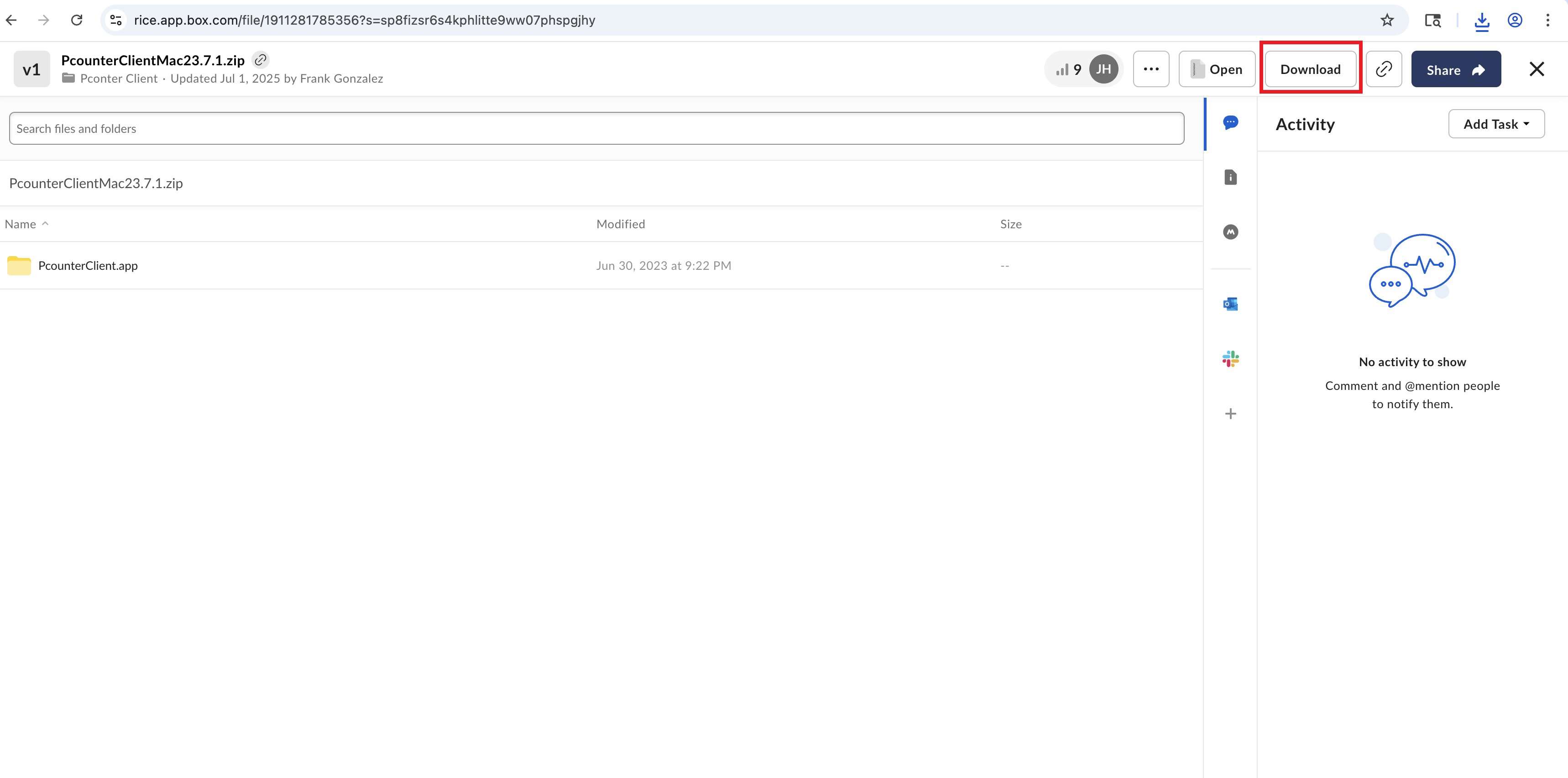
5. You will see this page and click on the Download option on top.
6. Click "Allow" on this option to Allow the downlaod.
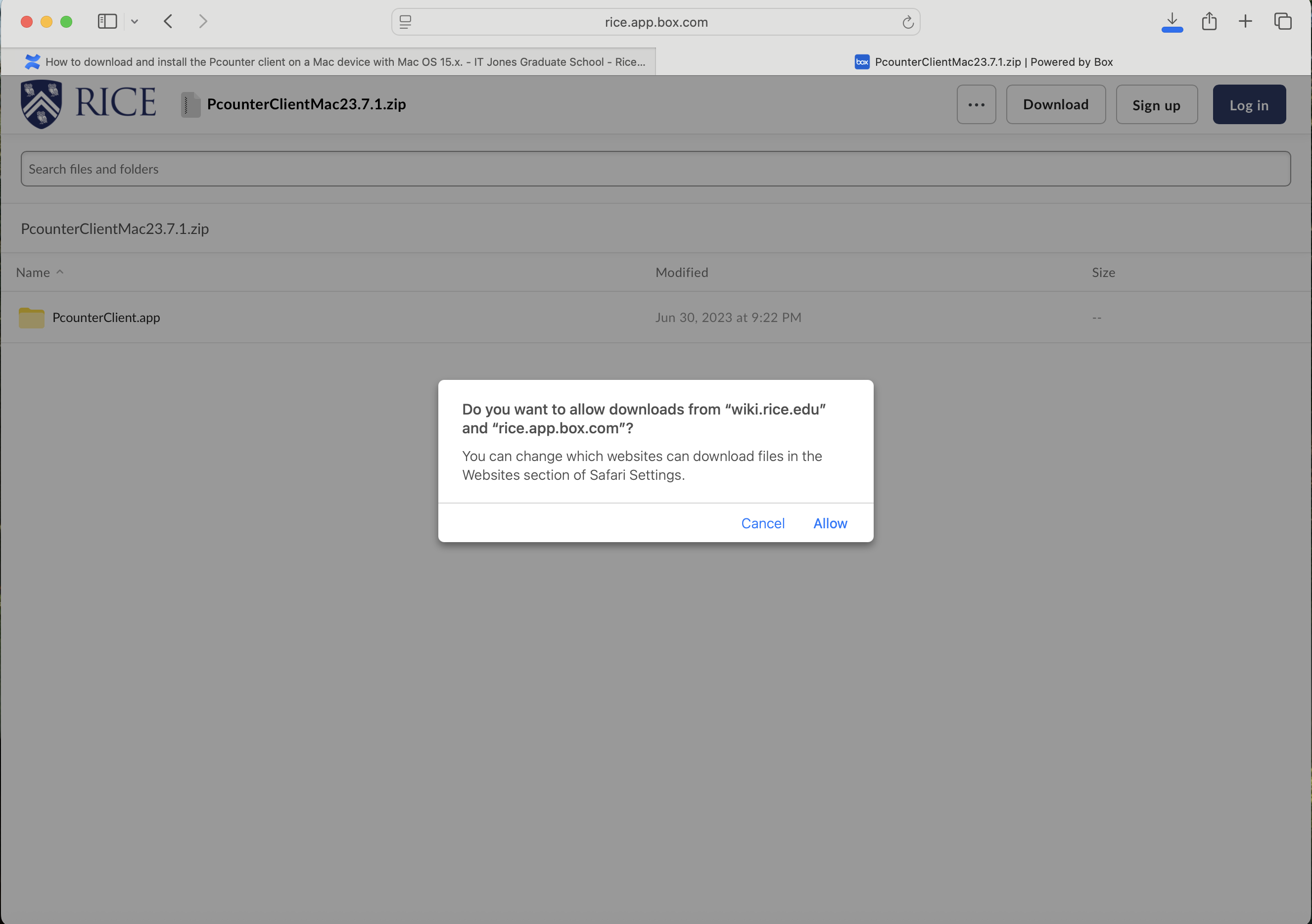
7. Click on the "PcounterClientMac 23.7.1" to download.
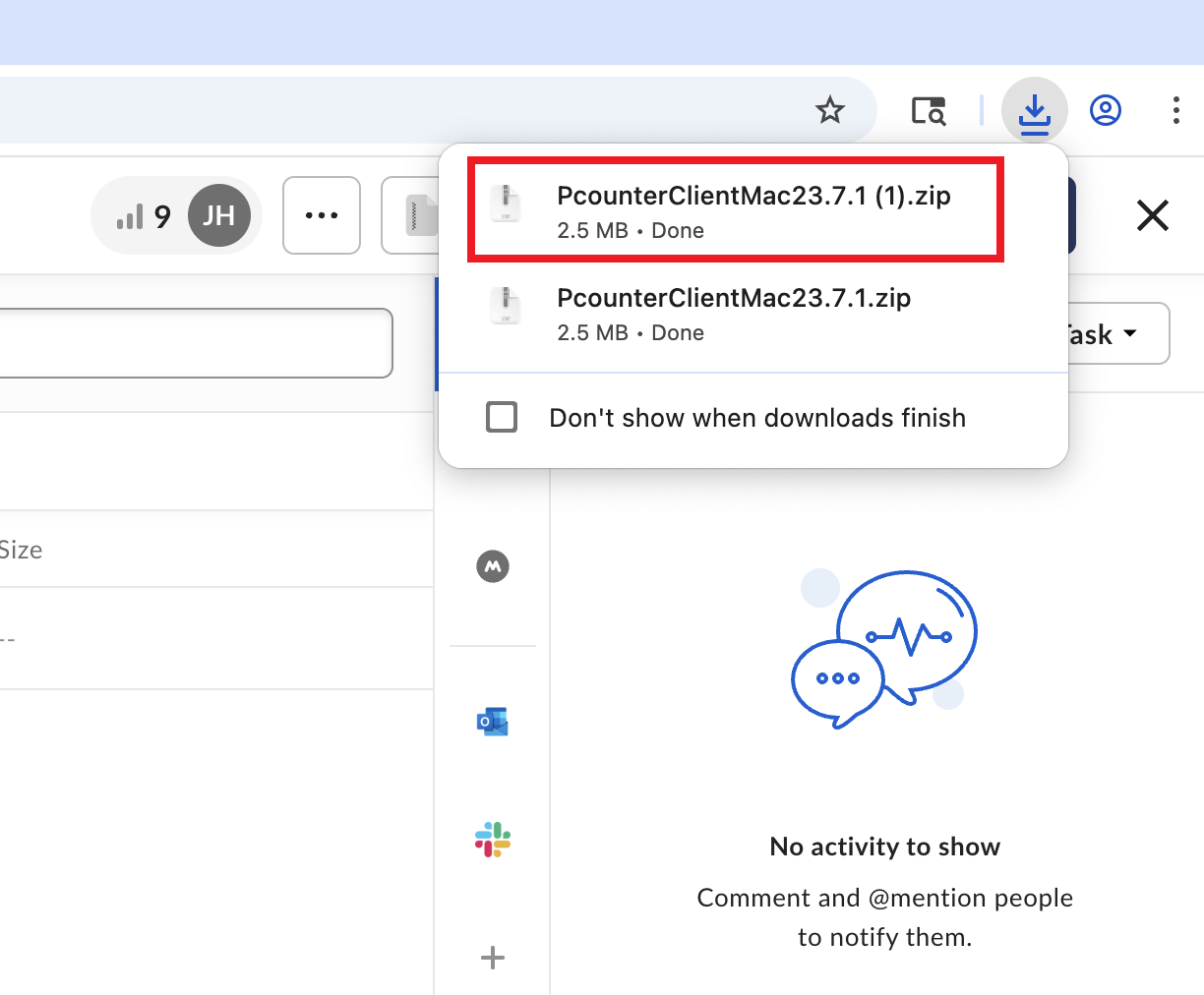
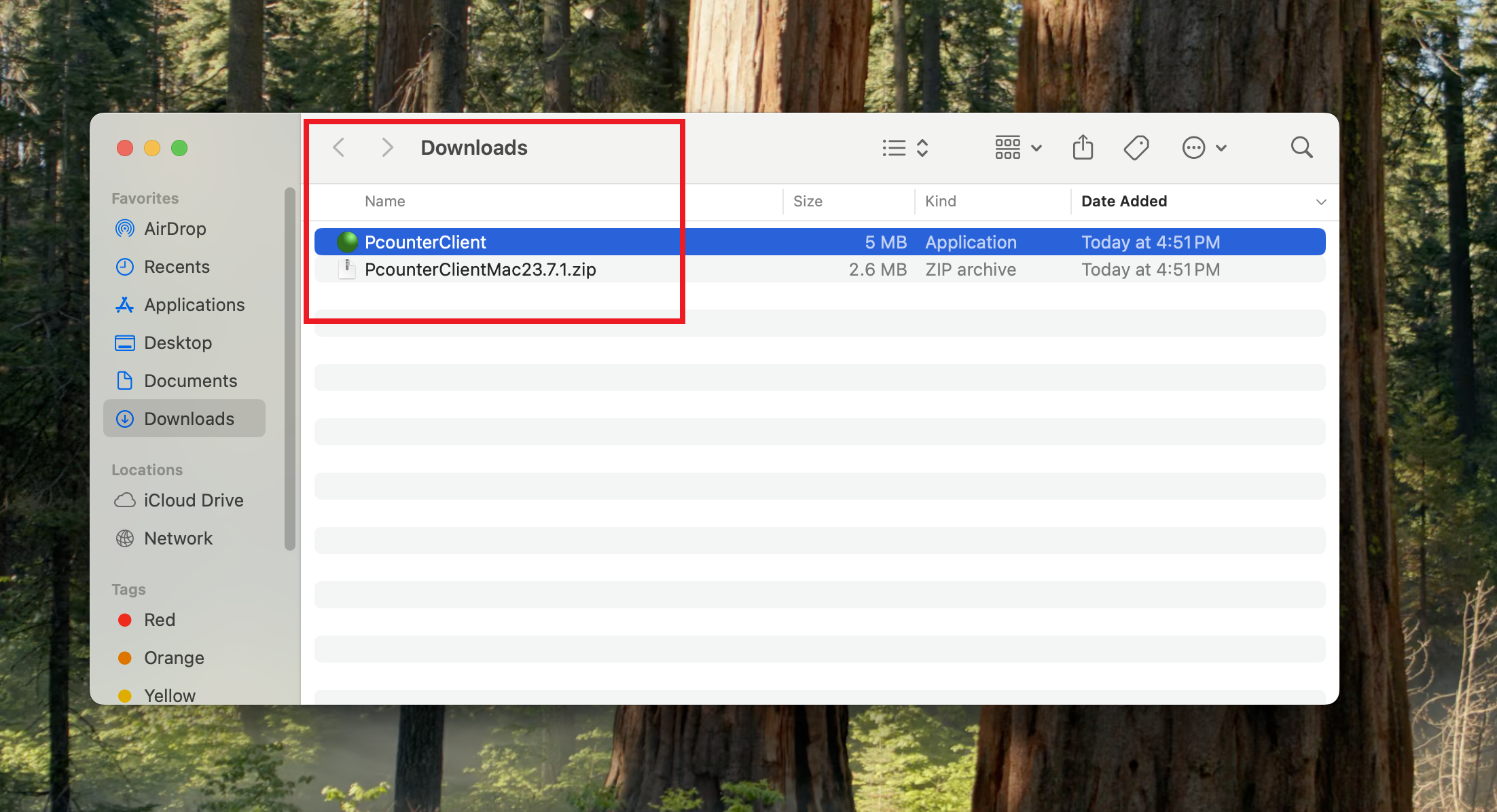
8. You will see the Pcounter client in the Download folder on your Mac.
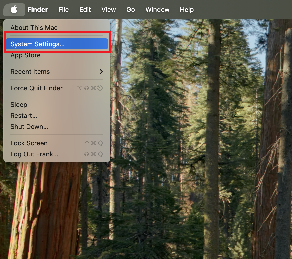
9. Now you will go to the "System Settings" again to have the client load when you login.
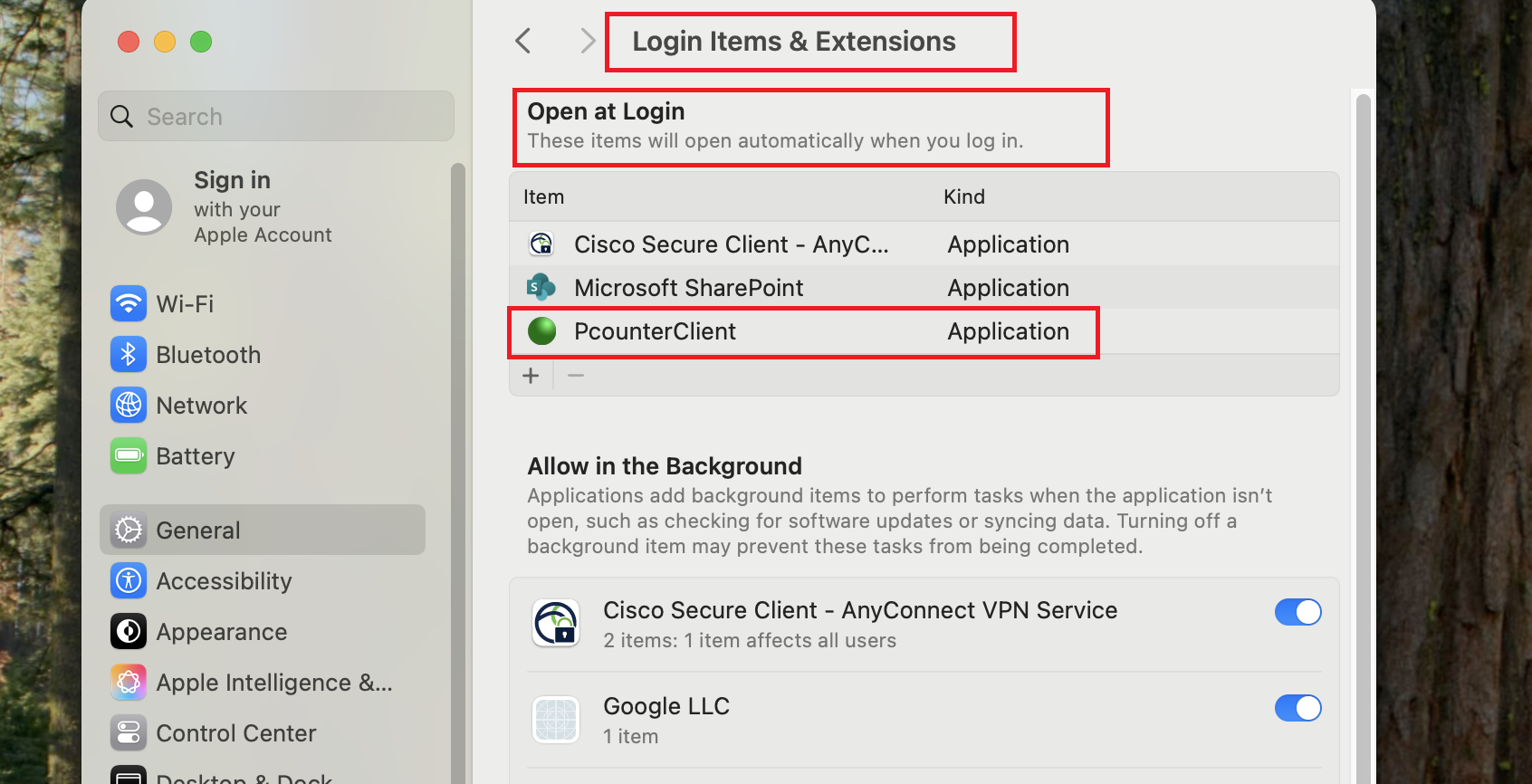
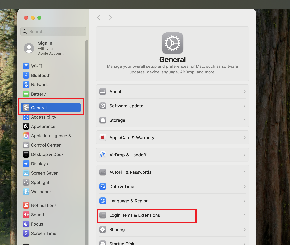
10. Go to "General" and go to "Login Items & Extensions"
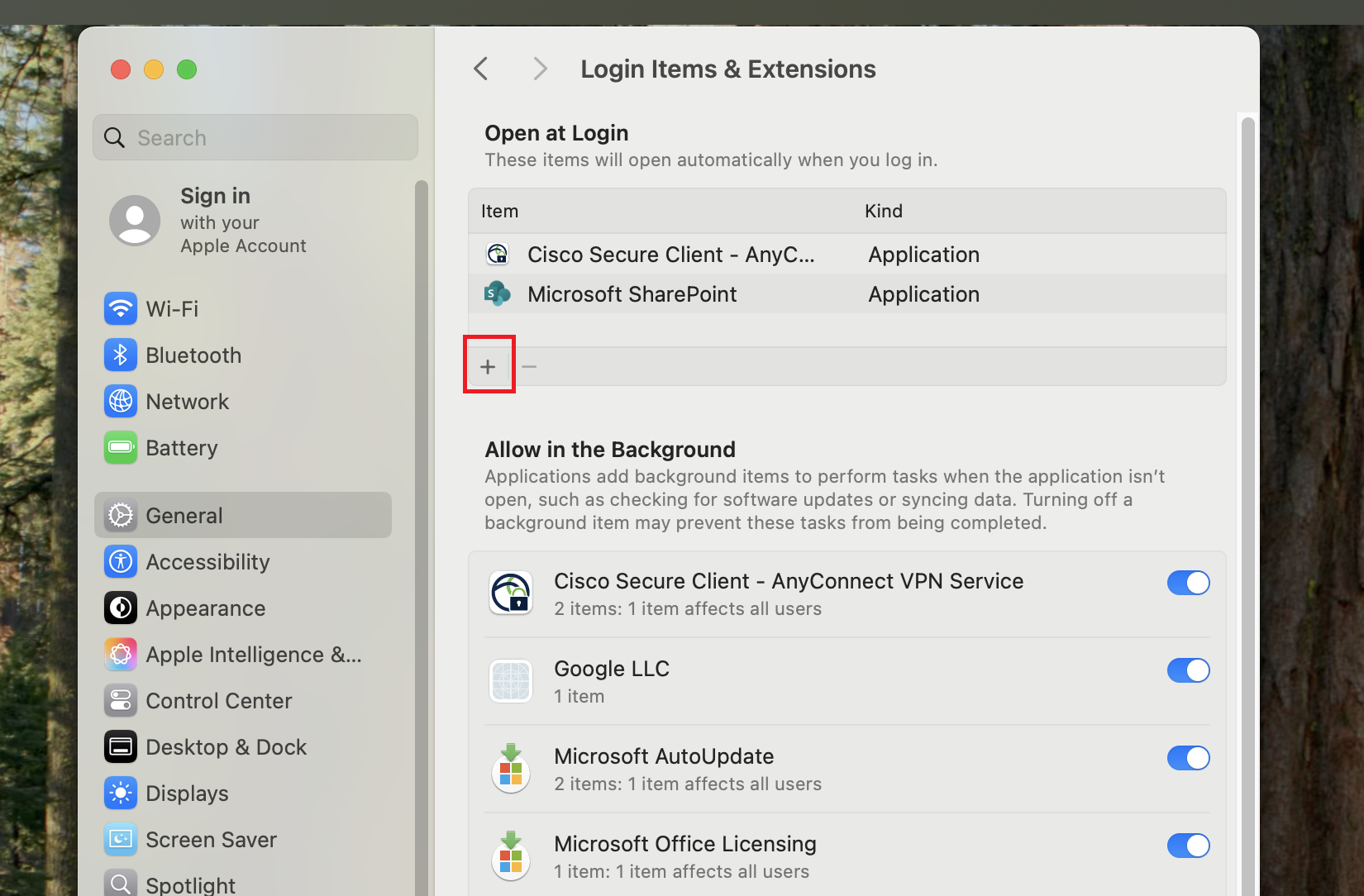
11. Click on the "+" sign to add an application to this group so it will start automatically.
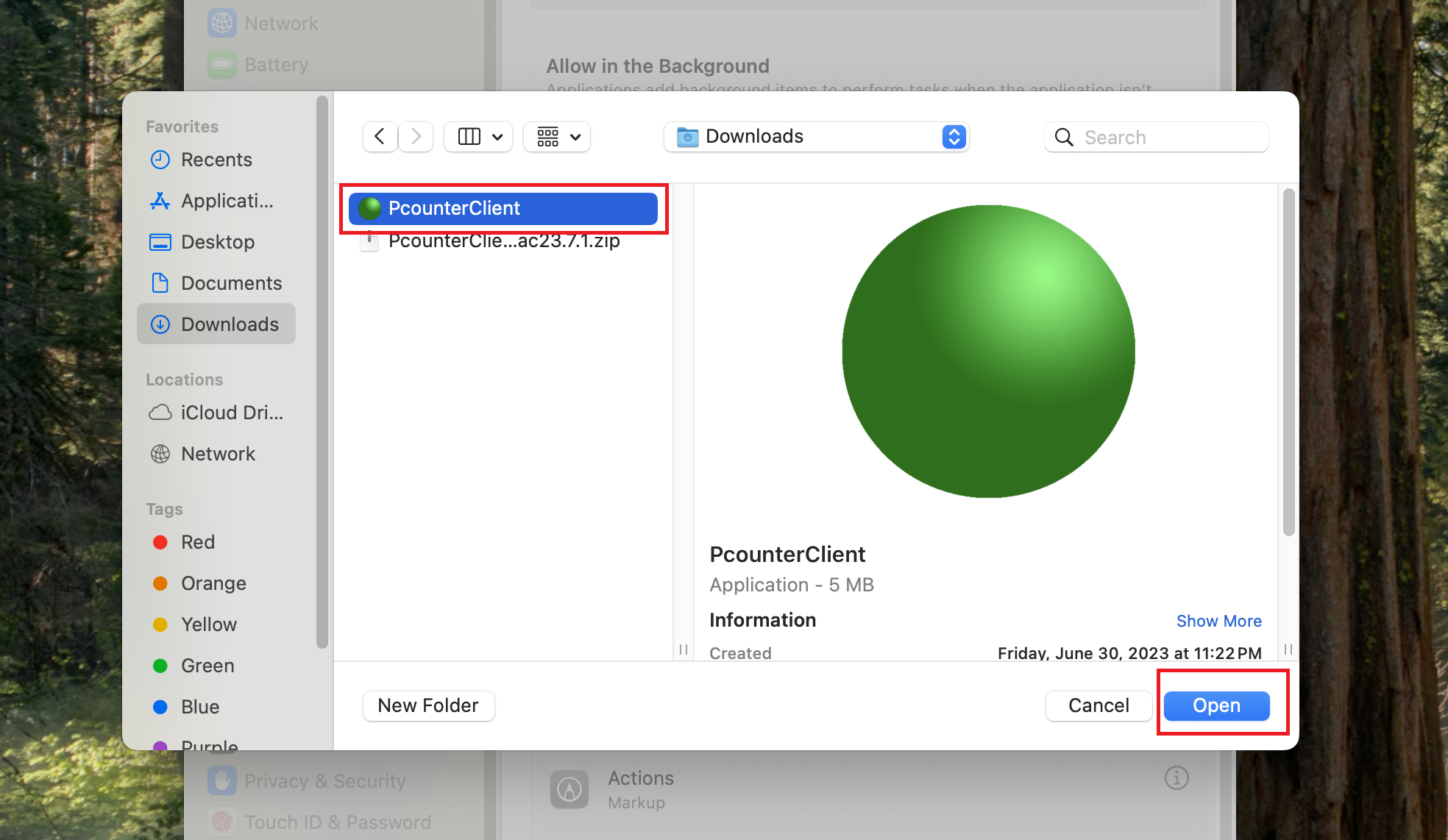
12. Go to the download folder and select "Pcounter Client" application and click on the "Open".
13. You will see the "Pcounter Client" has been added to this group to automatically load when you login.