...
- Updating the bibliographic record in Alma
- Updating the bibliographic description for the PO line
- Editing the portfolio
- Verify that the publisher has given us full-text access
- Activating the portfolio
- Marking the title as Done in the Electronic Resource Activation Task List
When should you follow these procedures?
...
- Search Alma for the ebook. (tip: search using the ISBN from the NOA)
- Edit the bib record if necessary, following the PN guidelines.
- If copying/pasting data from OCLC Connexion, remember to change subfield indicators from ǂ to $$.
- Save and Release the bib record.
- If you accidentally Save instead of Save and Release, you may get a pop-up window that says "An external process has changed the original record. It is recommended to reload the original record." You can ignore the message and click Close to close the pop-up. Go to Record Actions > Release Record to release the record.
Step 2: Updating the bibliographic description for the PO line
...
- Search Alma for the title.
- Click on the number of orders

- Click the Change Bib Reference button.
- A confirmation message will appear. Click Confirm.
- Click the round radio button next to the bib record you just updated (or use the search box to find the bib record) and then click Select.
- You should see a green message on the right side of your Alma screen confirming that the POL bib reference has been updated.
Step 3: Editing the portfolio
...
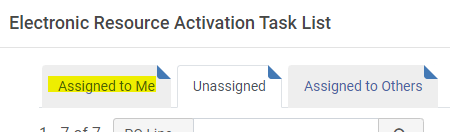
Note: Once you interact with a title on the Electronic Resource Activation List, it will move from the Unassigned tab to the Assigned to Me tab:
Step 4: Verify that the publisher has given us full-text access
...
- Go back to the title on the Electronic Resource Activation List by clicking on the clipboard icon
 at the top of your Alma screen and selecting Electronic Resources > Activation - assigned to you .
 - Locate the title on the list, then click the ... button and select Test Access. This will load an Online Services page.
- Click the link that appears after "Full text available at:"
- Verify that you have full-text access to the entire ebook (and not just previews of the chapters or access to only certain chapters).
- If you have full-text access, proceed to the next step. If not, notify eresources@rice.edu for troubleshooting.
Step 5: Activating the portfolio
...
- Find the title on the Electronic Resource Activation Task List.
- Click the ... button and select Activate.
- Confirm that you want to activate the portfolio by clicking Confirm.
- A window will pop up asking if you want to edit the portfolio. You already did that in a previous step so click Cancel. This should return you to the Electronic Resource Activation Task List.
Step 6: Marking the title as Done in the Electronic Resource Activation Task List
...