...
- Updating the bibliographic record in Alma (optional)
- Updating the bibliographic description for the PO line
- Editing the portfolio
- (optional)
- Verify that the publisher has given us full-text access
- Activating the portfolio
- Editing the portfolio
- Marking the title as Done in the Electronic Resource Activation Task List
...
- Search Alma for the title.
- Click on the number of orders

- Click the Change Bib Reference button.
- A confirmation message will appear. Click Confirm.
- Click the round radio button next to the bib record you just updated (or use the search box to find the bib record) and then click Select.
- You should see a green message on the right side of your Alma screen confirming that the POL bib reference has been updated.
| Anchor |
|---|
...
|
...
|
Step
...
3: Verify that the publisher has given us full-text access
Check that the publisher has turned on full-text access.
- Find the title on the Electronic Resource Activation List by clicking on the clipboard icon
 at the top of your Alma screen and selecting Electronic Resources > Activation - unassigned.
 - Click the ... button and select Test Access. This will load an Online Services page.
- Click the link that appears after "Full text available at:"
- Verify that you have full-text access to the entire ebook (and not just previews of the chapters or access to only certain chapters)by spot-checking several chapters.
- For Ebook Central titles, verify the number of copies available to us. If the number is something other than 1 or Unlimited, note it for a later step.
- If you have full-text access, proceed to the next step. If not, notify eresources@rice.edu for troubleshooting.
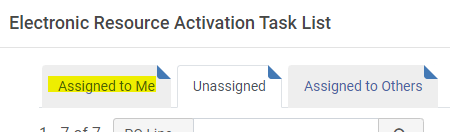
Note: Once you interact with a title on the Electronic Resource Activation List, it will move from the Unassigned tab to the Assigned to Me tab:
| Anchor |
|---|
...
|
...
|
Step
...
4: Activating the portfolio
"Portfolio" is a term used in Alma to refer to, essentially, item records for online resources. Activating a portfolio makes it available to users in Primo.
- Find the title on the Electronic Resource Activation Task List (it will have moved to the Electronic Resources > Activation - assigned to you tab)
- Click the ... button and select Activate.
- Confirm that you want to activate the portfolio by clicking Confirm.
- A window will pop up asking if you want to edit the portfolio. Click Confirm again to open the Electronic Portfolio Editor.
| Anchor |
|---|
...
|
...
|
Step
...
5: Editing the portfolio
If the copies available to us is 1 or unlimited, make the following edits:
- General tab
- Electronic material type = Book
- Access type = Perpetual
- Acquisition tab
- Highlight and copy the portion of the PO Line details that includes the access model and two-letter code. For example, "Unlimited Access (UU)"
- Notes tab
- Click on Add Note and paste the text. Click Save.
- Click Save. This should return you to the Electronic Resource Activation Task List.
If the copies available to us is something other than 1 or unlimited, make the following edits
...
, which will suppress the automatic public access model note and replace it with a manually entered authentication note instead.
- General tab
- Electronic material type = Book
- Access type = Perpetual
- Acquisition tab
- Highlight and copy the portion of the PO Line details that includes the access model and two-letter code. For example, "Unlimited Access (UU)"Change the public access model to blank.
- Notes tab
- Click on Add Note and paste the text. Click Save.enter a brief note about the number of copies available (for example, "6 copies")
- Also add a note to the authentication note field that specifies the number of copies. For example, "This ebook is available to 6 users at a time."
- Click Save. This should return you to the Electronic Resource Activation Task List.
...
- Find the title on the Electronic Resource Activation Task List.
- Click the ... button and select Done. The title should be gone disappear from your Electronic Resource Activation Task List.
...