...
How do I know when an ebook is ready to be cataloged?
When an ebook is ready for useorder has been processed by the publisher, GOBI sends an email with a subject line that starts with "GOBI NOA:" followed by the name of the publisher (NOA stands for "notice of access"). The email is sent to the Electronic Resources team's distribution list (eresources@rice.edu) and to individual catalogers who work on ebooks. Contact GOBI to add or remove notification recipients.
Here is an example of an NOA. Below the introductory text of the email is information about the ebook(s):
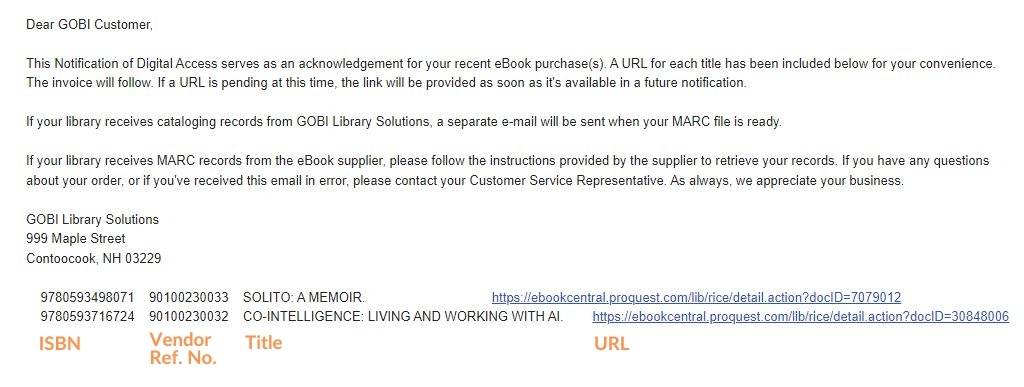
For most publishers, access to the ebook is turned on by the time the NOA is received. For other publishers, it may be several days (or longer!) before access is turned on.
...
Cataloging procedures
| Anchor | ||||
|---|---|---|---|---|
|
...
- Find the title on the Electronic Resource Activation List by clicking on the clipboard icon
 at the top of your Alma screen and selecting Electronic Resources > Activation - unassigned.
 - Click the ... button and select Test Access. This will load an Online Services page.
- Click the link that appears after "Full text available at:"
- Verify that you have full-text access to the entire ebook by spot-checking several chapters.
- For Ebook Central titles, verify the number of copies available to us. If the number is something other than 1 or Unlimited, note it for later.If you have full-text access, proceed to the next step. If not, notify eresources@rice.edu for troubleshooting.
...
Step 5: Editing the portfolio
If the copies available to us is
...
unlimited, make the following edits:
- General tab
- Electronic material type = Book
- Access type = Perpetual
- Acquisition tab
- Highlight and copy the portion of the PO Line details that includes the access model and two-letter code. For example, "Unlimited Access (UU)"
- Notes tab
- Click on Add Note and paste the text. Click Save.
- Click Save. This should return you to the Electronic Resource Activation Task List.
If the copies available to us is something other than unlimited, verify the total number of copies that were ordered. If 1
...
-user or 3-user licenses were purchased, follow the instructions above and check that the access model matches the number of users allowed. If a quantity other than 1 or 3 copies was ordered, make the following edits, which will suppress the automatic public access model note and replace it with a manually entered authentication note instead.
- General tab
- Electronic material type = Book
- Access type = Perpetual
- Acquisition tab
- Change the public access model to blank.
- Notes tab
- Click on Add Note and enter a brief note about the number of copies available (for example, "6 copies")
- Also add a note to the authentication note field that specifies the number of copies. For example, "This ebook is available to 6 users at a time."
- Click Save. This should return you to the Electronic Resource Activation Task List.
...