Background
When ebooks are automatically purchased through our DDA program, we receive an email alert from ProQuest Ebook Central. Autopurchased ebooks are already made available to users so processing them is not urgent (because the electronic portfolios have already been activated and users can access the ebook). However, some additional processing is needed for recordkeeping purposes.
Autopurchase Alerts
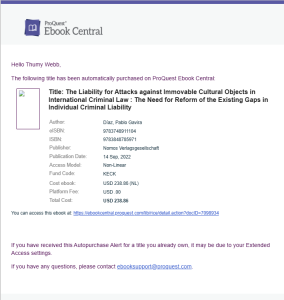
Autopurchase alerts are emails sent by ProQuest (from noreply@proquest.com) with bibliographic and acquisition information about the ebook. To be added or removed from the recipients list for the alerts, email eresources@rice.edu. Here is an example of an email. (Click on the image to see a larger version).
Processing Instructions
- Update the bibliographic record in Alma if better copy is available in OCLC.
- Search OCLC for a better record. If there is one, overlay the Alma record with the better record.
- If there is no better record in OCLC (or if the record is attached to the CZ and you cannot overlay), improve upon the existing Alma record if the formatting is wrong or if fields are missing.
- Open the electronic portfolio attached to the bib record.
- In the Metadata editor, after the bib record has been updated and saved, go to View Related Data > View Inventory (or type Ctrl-I).
- Click the Edit button next to the portfolio
- Edit the portfolio by setting the following fields to these values:
- On the General tab
- Electronic material type = Book
- Library = FONDREN LIBRARY
- Access type = Perpetual
- On the Acquisition tab
- Public access model = Select the access model from autopurchase alert (most of the time it will be NL for Non-Linear)
- On the Notes tab
- In the General Notes sections, add a note that contains the autopurchased date (which is the date of the autopurchase alert) and the access model. For example, "Autopurchased 6/15/2024; NL access model."
- Save your edits by clicking Save. This should take you back to the Metadata Editor.
- Autopurchased ebooks do not appear on the Alma Task list (the "clipboard") like normal ebook purchases, so once the portfolio has been edited you are done processing that title.
- On the General tab
Quick Reference for Selected Ebook MARC Fields for use in Alma Metadata Editor
Please note: the information provided below applies to the majority but not all of ebook records that are autopurchased.
| MARC Field | Contents of Field |
|---|---|
| LDR | Type of record = a Bibliographic level = m |
| 006 | m#####o##d######## |
| 007 | Black & white ebook: Color ebook: |
| 008 | Fill this out according to the qualities of the ebook. |
| 300 | $$a 1 online resource (___ pages) Add $$b for illustrative content, if any. |
| 336 | $$a text $$b txt $$2 rdacontent |
| 337 | $$a computer $$b c $$2 rdamedia |
| 338 | $$a online resource $$b cr $$2 rdacarrier |
| 588 | $$a Online resource; title from ebook title page (SOURCE, viewed DATE) For example: $$a Online resource; title from ebook title page (EBSCO, viewed January 13, 2025) |